The MBO Indicators package shows three types of events that can be detected using Market-By-Order data
Indicators are temporarily free on Ultra. Terms of the limited-time offer are subject to change.
- Icebergs Tracker detects Icebergs — large limit orders with hidden real volume that stall price movement. It tracks which side of the iceberg the iceberg is on, how much liquidity it has absorbed, and highlights the levels where large players are positioned. .
- Stops Tracker detects cascades of triggered stop orders and groups them into stop runs. Helps distinguish a real breakout from a stop hunt and act where the market collects liquidity. shows trades initiated by triggered stop orders.
- Sweeps Tracker detects sweeps — large aggressive orders that "sweep" liquidity across multiple levels of the order book at once. Shows moments of strong momentum that often trigger a price movement.
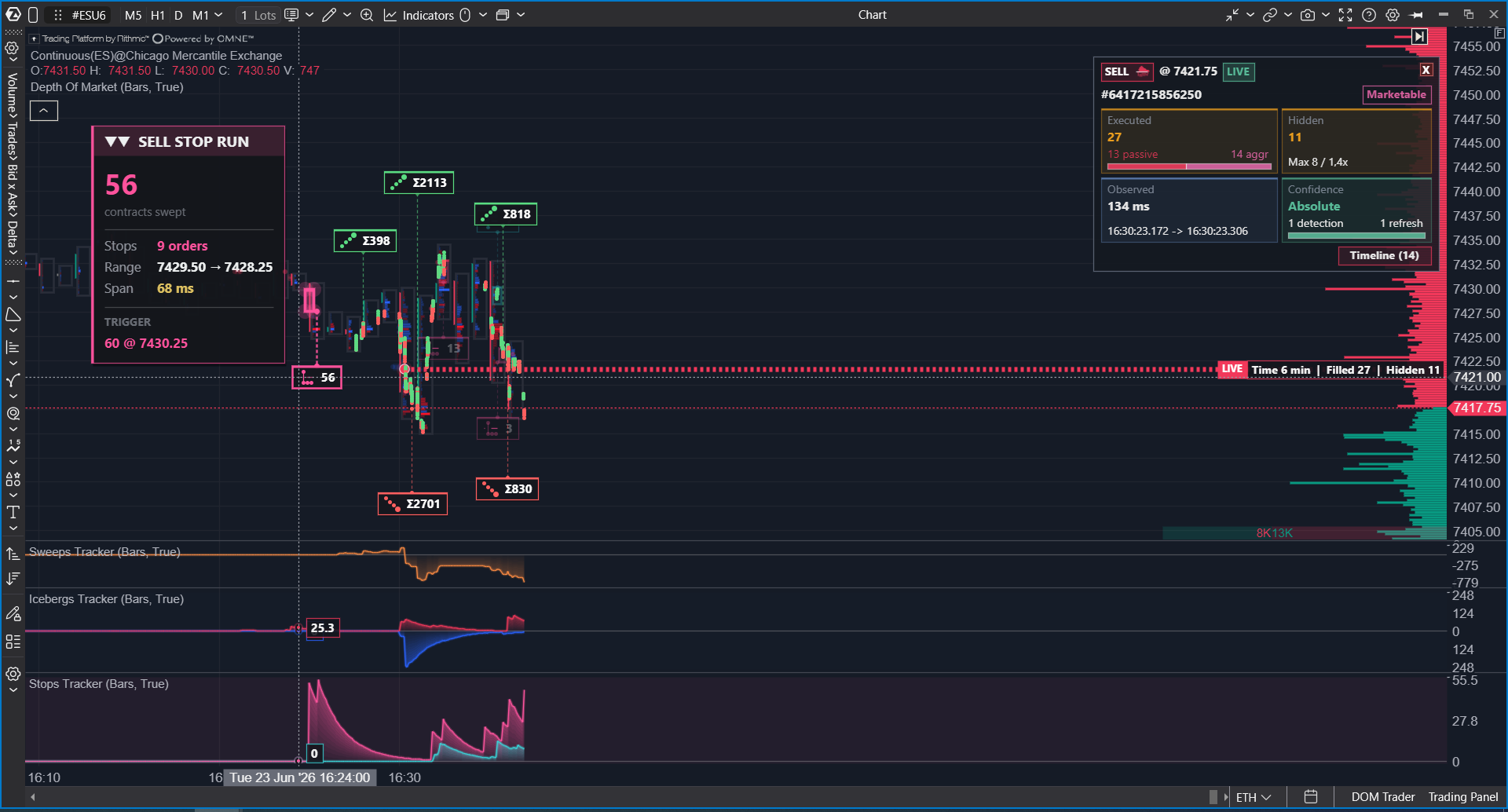
You can find and add to chart these indicators from Indicators list: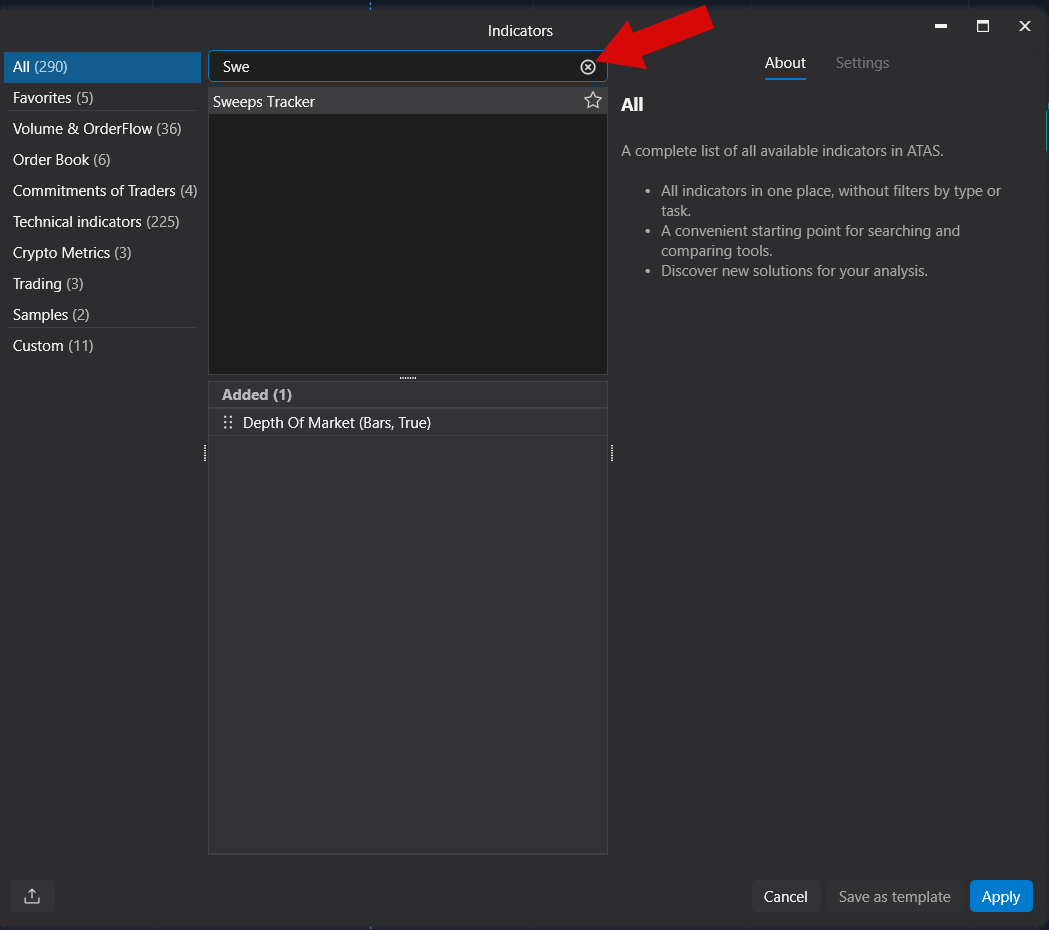
All three indicators use the MBO and trades data streams. If MBO data is not available for the selected instrument or connection, the indicators will not be able to calculate new events and will display the corresponding status on the chart.
The indicators require:
- Trades stream.
- MBO / Market-By-Order data (required only for Icebergs Detector). For Stops Tracker and Sweeps Tracker is enough Rithmic with lvl1/lvl2 data.
- Order IDs in the data received from the connector.
MBO is not available for all markets and connections. If the data is not received, this is not an indicator error. It means that the current instrument, connector, or data mode does not provide the required data stream.
Common Elements
Display Mode
All three indicators have the Display Mode setting:
| Mode | Description |
| Chart and Panel | Shows data on the chart and in the lower panel. |
| Chart Only | Shows objects only on the price chart. |
| Panel Only | Shows only the lower activity panel, without objects on the price chart. |
Default values:
- Sweeps Tracker: Chart Only.
- Stops Tracker: Chart and Panel.
- Icebergs Tracker: Chart and Panel.
If the chart starts working slower, first try switching to Chart Only mode or increasing the minimum volume filters.
Chart Statuses
The indicators display a status in the lower-left corner of the chart or panel:
- Subscribing to MBO.
- The indicator is waiting for the first MBO events.
- No MBO data is available.
- History is loaded, but there are no new live MBO events.
- Data is available, but nothing passes the current filters.
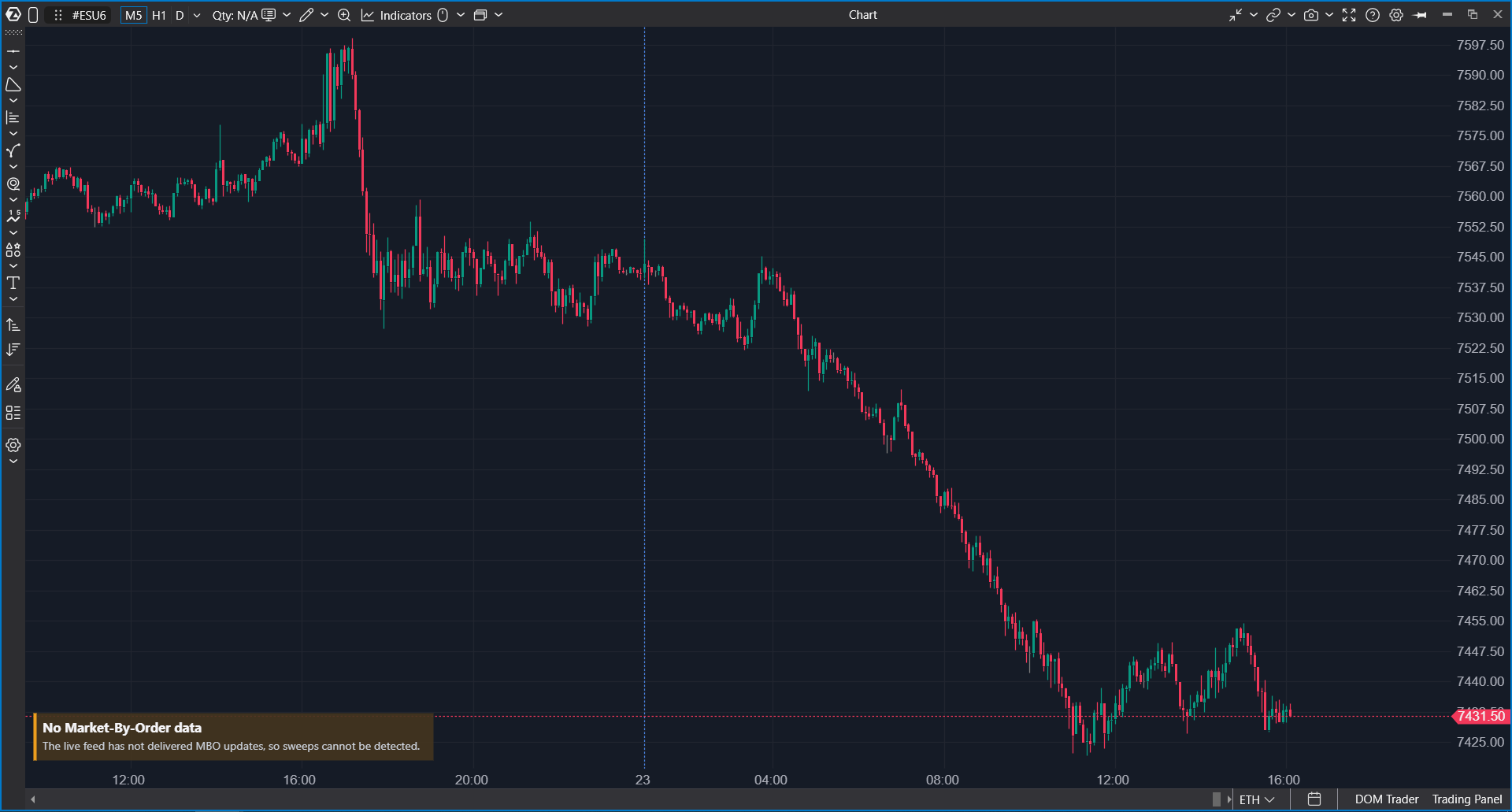
If you see the No Market-By-Order data status, the indicator is not receiving the MBO stream. In this state, history may be displayed, but new events will not be detected.
History
The indicators store local history in the ATAS user profile:
%APPDATA%\ATAS\IndicatorData\IcebergsTracker
%APPDATA%\ATAS\IndicatorData\StopsTracker
%APPDATA%\ATAS\IndicatorData\SweepsTracker
History is loaded when the indicator is added to the chart. If the history contains events for the current instrument, they will be displayed immediately, even before new live MBO data is received.
Icebergs Tracker
What It Shows
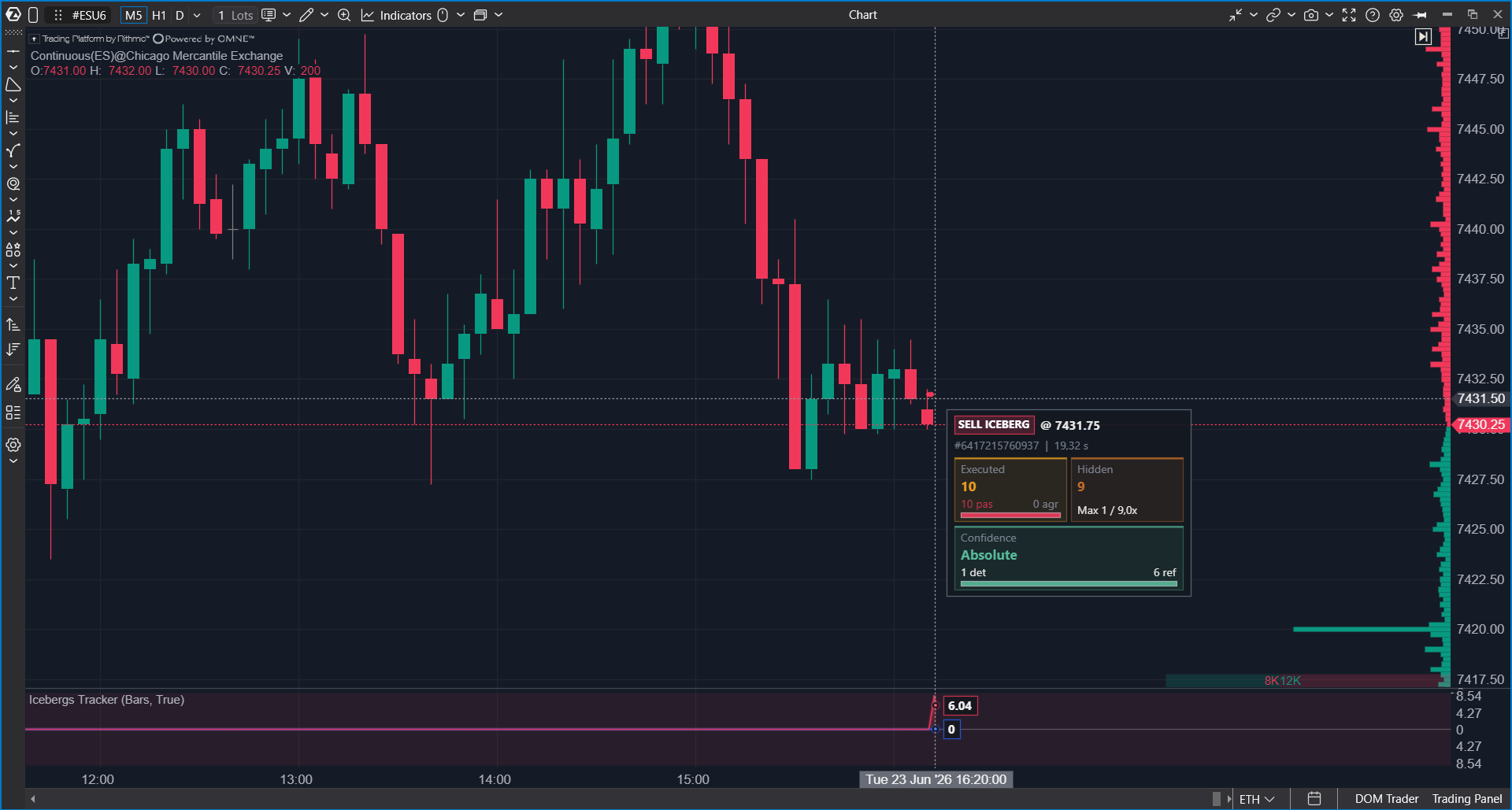
Icebergs Tracker detects iceberg orders: large limit orders where the visible part in the order book is executed, while the hidden part continues to refresh the available volume.
On the chart, the indicator shows:
- The iceberg lifetime line.
- The iceberg side: bid or ask.
- Executed volume.
- Volume labels.
- Individual iceberg trades, if Show Individual Trades is enabled.
- A detailed card on click or hover, if tooltips or the detail panel are enabled.
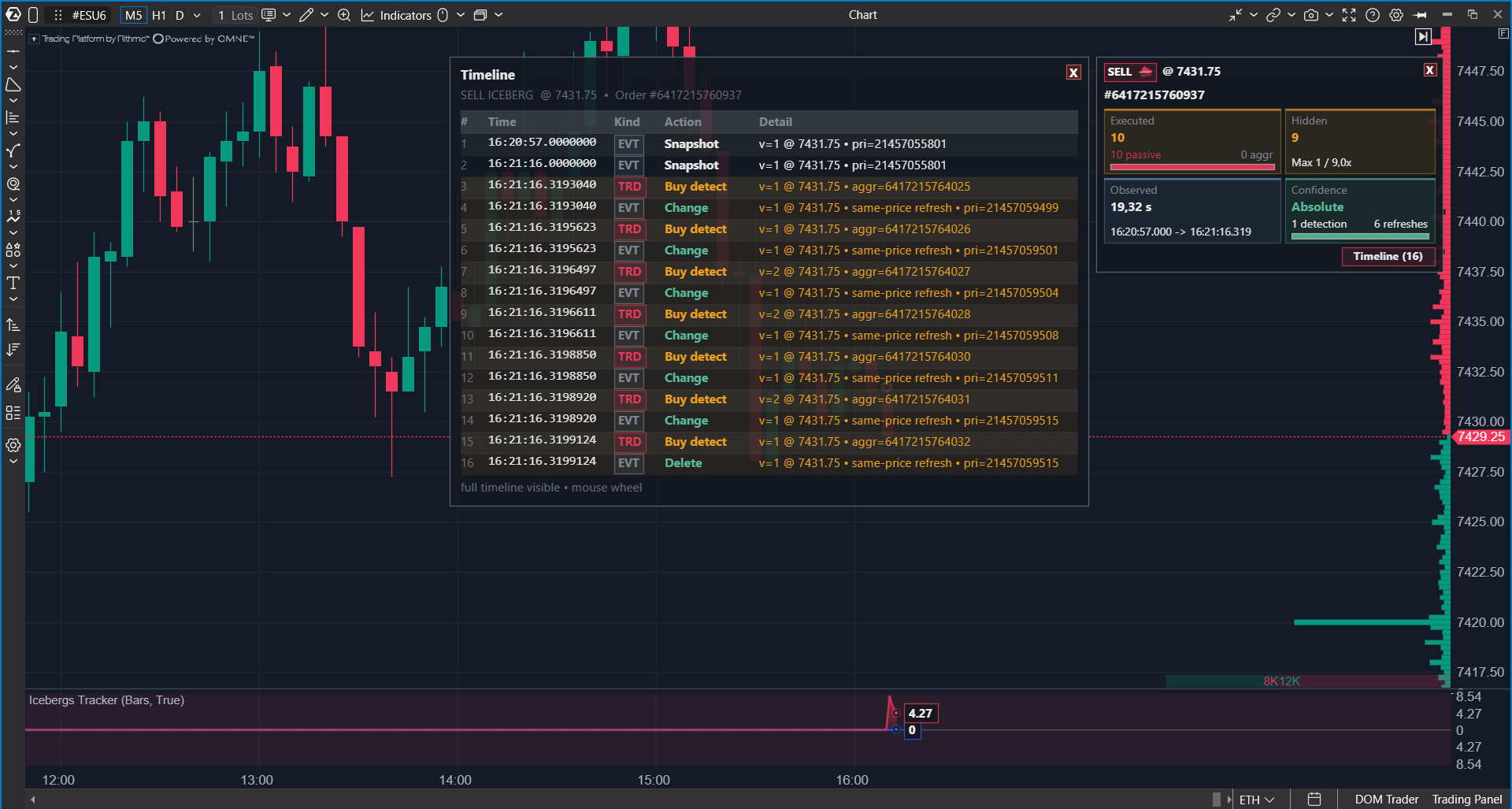
A bid-side iceberg means hidden buying in the limit order book. An ask-side iceberg means hidden selling.
Detection Confidence
The indicator can show different confirmation types:
- Absolute — reliable confirmation through native priority refresh. This is the strongest case: the exchange effectively showed the refresh of the hidden part at the same price.
- Medium — the iceberg was detected by indirect signs of hidden liquidity execution, but without native refresh confirmation.
The iceberg details may include additional signs:
- native refresh confirmed — hidden part replenishment is confirmed.
- delete confirmed — order deletion or closure was detected.
- marketable — part of the logic is related to execution where the order was active or aggressive.
- refill / refresh — visible volume replenishment events.
- priority — a change in the order priority in the queue.
Main Settings
Iceberg Filters
| Setting | Description |
| Min Hidden Volume | Minimum hidden volume. Increase this value to filter out smaller icebergs. |
| Min Total Volume | Minimum total executed volume. 0 disables the filter. |
| Min Duration (sec) | Minimum iceberg lifetime. 0 disables the filter. |
Trades & Labels
| Setting | Description |
| Show Individual Trades | Shows individual trade points. Disabled by default. |
| Show Volume Labels | Shows volume labels next to icebergs. |
| Label Min Volume | Minimum volume required to display a label. |
| Label Mode | Label type: icon + value, value only, icon only, or stacked. |
| Cluster Overlapping Labels | Combines overlapping labels into one summarized label. |
| Show Tooltips | Shows tooltips on hover. |
Colors
| Setting | Description |
| Bid Iceberg Color | Color of bid-side icebergs. |
| Ask Iceberg Color | Color of ask-side icebergs. |
| Iceberg Highlight Color | Color used to highlight the trade that revealed hidden liquidity. |
| Selected Iceberg Color | Color of the selected iceberg. |
Activity Panel
The lower panel shows iceberg execution activity.
| Setting | Description |
| Activity Display | Separate or Centered. |
| Show Bid/Ask | Shows bid/ask activity lines. |
| Show Delta | Shows the delta line. |
| Activity Accumulation | Activity accumulation method. |
| Accumulation Time (sec) | Time used for accumulation modes. |
| Bid Activity Color | Color of bid activity. |
| Ask Activity Color | Color of ask activity. |
| Delta Color | Color of the delta line. |
Alerts
Icebergs Tracker can play a sound when an iceberg reaches the specified executed volume.
| Setting | Description |
| Use Alerts | Enables alerts. |
| Alert Filled Volume | The Filled volume threshold after which the alert is triggered. |
| Alert Sound | Alert sound. |
The alert is triggered once for a specific iceberg order ID after the threshold is reached. The message format is:
Iceberg BID: filled 600 >= 500 at 5234.25
Iceberg ASK: filled 600 >= 500 at 5234.25
Stops Tracker
What It Shows
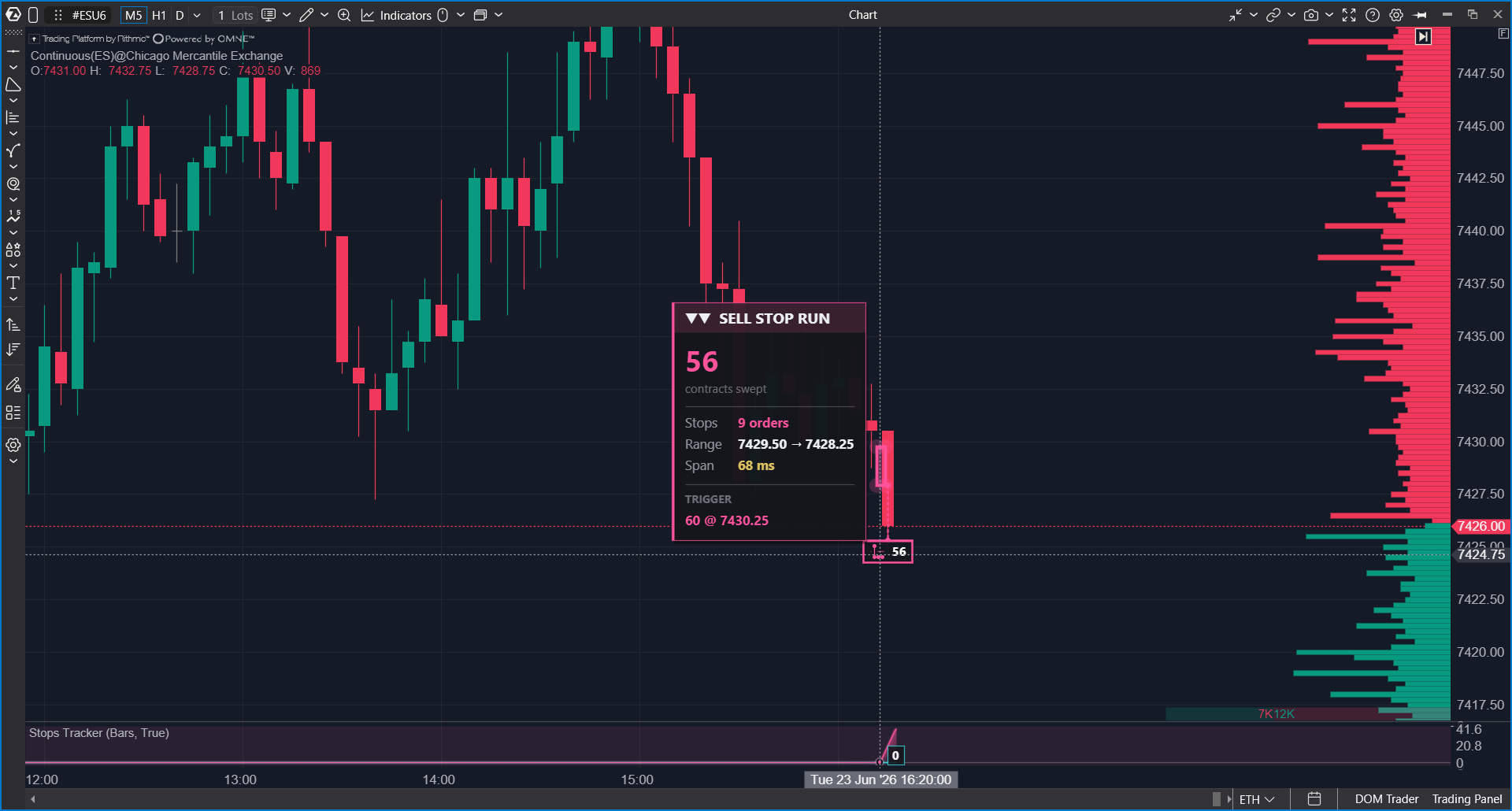
Stops Tracker shows stop runs: groups of trades that were initiated by triggered stop orders.
Initially, the market provides a stream of trades: the result of matching the active and passive sides. MBO makes it possible to classify which trades were regular aggressive market flow and which were caused by triggered stops. Stops Tracker takes these stop trades and groups events that are close in time and price into one stop run.
A buy stop run usually moves the price upward. A sell stop run usually moves the price downward.
Main Settings
Stop Runs
| Setting | Description |
| Show Stop Runs | Enables or disables stop run rendering. |
| Min Volume | Minimum total stop run volume. |
| Max Window (ms) | Maximum aggregation window from the beginning of the run. |
| Min Range (ticks) | Minimum price range in ticks. |
| Min Stops Count | Minimum number of stop aggressors. |
| Max Stops Count | Maximum number of stop aggressors. |
| Buy Stop Run Color | Color of buy stop runs. |
| Sell Stop Run Color | Color of sell stop runs. |
| Highlight Style | Highlight style on the chart. |
| Highlight Size | Highlight size. |
| Highlight Line Thickness | Highlight line thickness. |
Highlight Style
- Filled Rectangle
- Outline Rectangle
- Dashed Filled Rectangle
- Dashed Outline Rectangle
- No Highlight
- Price Level Dots
Stops Tracker alerts are tied specifically to the appearance of a price highlight. If No Highlight is selected or chart rendering is disabled, the alert will not be triggered.
Labels
| Setting | Description |
| Label Min Volume | Minimum volume required for a full text label. |
| Label Font Size | Label font size. |
| Label Offset | Label offset from the highlight. |
| Label Mode | Icon + value, value only, icon only, or stacked. |
| Show Tooltips | Shows a detailed tooltip on hover. |
Activity Panel
The lower panel shows stop event activity.
| Setting | Description |
| Activity Display | Separate or Centered. |
| Show Buy/Sell | Shows buy/sell lines. |
| Show Delta | Shows the delta line. |
| Activity Accumulation | Activity accumulation method. |
| Accumulation Time (sec) | Time used for accumulation modes. |
| Buy Activity Color | Color of buy activity. |
| Sell Activity Color | Color of sell activity. |
| Delta Activity Color | Color of the delta line. |
Alerts
| Setting | Description |
| Use Alerts | Enables alerts. |
| Alert Sound | Alert sound. |
The alert is triggered when a new stop run appears in live data, passes the filters, and receives a price highlight on the chart. Further growth of an already marked run should not play the sound again.
The message format is:
Stop Run BUY: 220 contracts, 4 stops, 5234.25 - 5235.00
Stop Run SELL: 220 contracts, 4 stops, 5235.00 - 5234.25
Sweeps Tracker
What It Shows
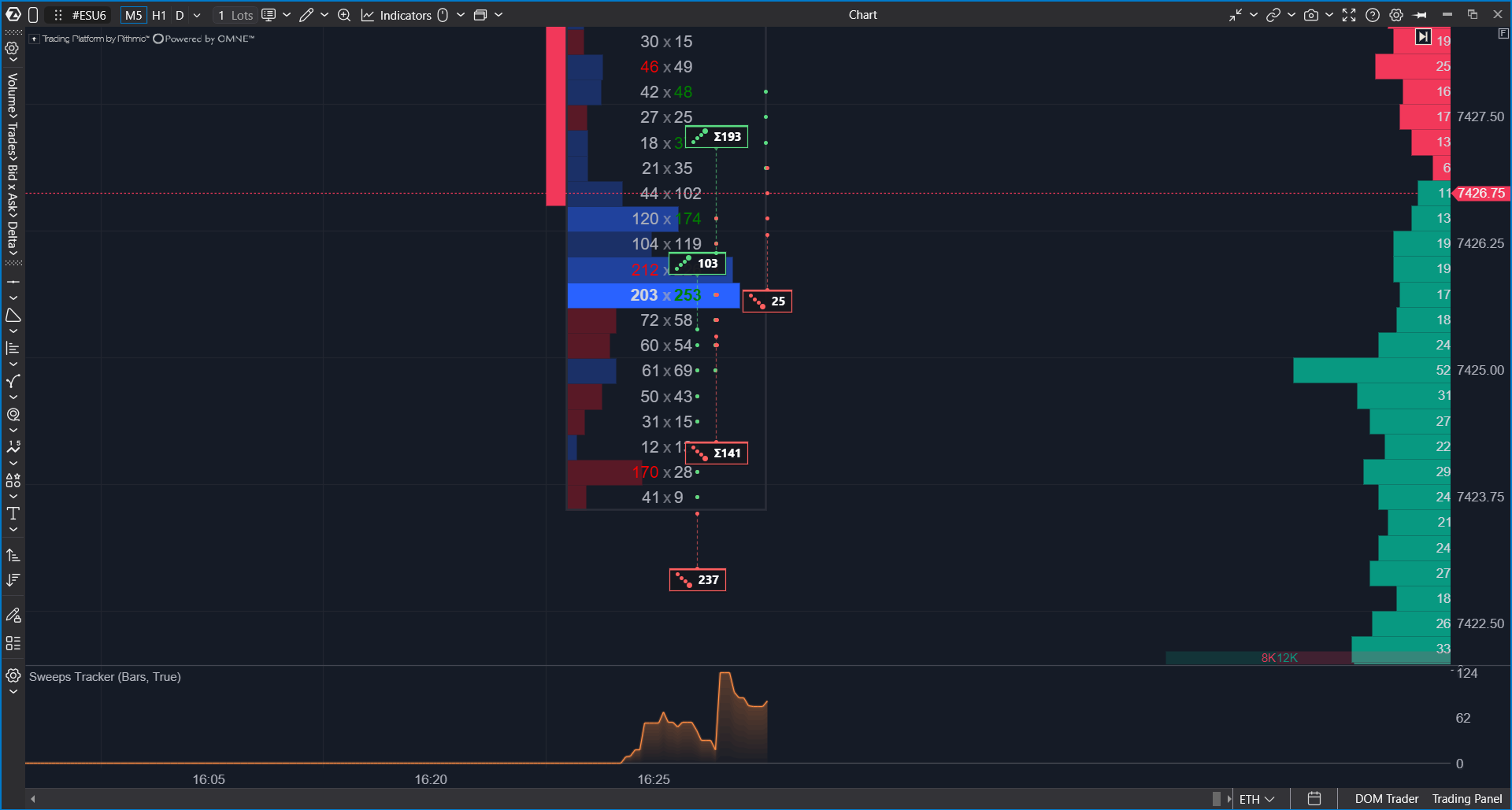
Sweeps Tracker shows aggressive market flow: groups of trades where the active side quickly takes liquidity. Such a sweep can be caused by market orders, IOC/FOK orders, or modified limit orders that crossed the opposite side of the order book.
Unlike Stops Tracker, Sweeps Tracker shows primary aggressive market flow by default, without including stops. If needed, stop volume from the same matching events can be added using the Include Stops setting.
A buy sweep usually means aggressive buying and upward price movement. A sell sweep usually means aggressive selling and downward price movement.
Main Settings
Sweeps
| Setting | Description |
| Show Sweeps | Enables or disables sweep rendering. |
| Min Volume | Minimum total sweep volume. |
| Max Window (ms) | Maximum aggregation window from the beginning of the sweep. |
| Min Range (ticks) | Minimum price range in ticks. |
| Min Aggressors Count | Minimum number of aggressor orders. |
| Max Aggressors Count | Maximum number of aggressor orders. |
| Include Stops | Adds triggered stop volume from the same matching events. |
| Buy Sweep Color | Color of buy sweeps. |
| Sell Sweep Color | Color of sell sweeps. |
| Highlight Style | Highlight style on the chart. |
| Highlight Size | Highlight size. |
| Highlight Line Thickness | Highlight line thickness. |
By default, Include Stops is disabled so that regular aggressive flow is not mixed with stop runs.
Labels
| Setting | Description |
| Label Min Volume | Minimum volume required to display a label. |
| Label Font Size | Label font size. |
| Label Offset | Label offset from the highlight. |
| Label Mode | Icon + value, value only, icon only, or stacked. |
| Cluster Labels by X | Combines nearby labels of the same side by X position. |
| Cluster X Offset | Maximum distance for combining labels. |
| Show Tooltips | Shows a detailed tooltip on hover. |
Activity Panel
The lower panel shows sweep event activity.
| Setting | Description |
| Activity Display | Separate or Centered. |
| Show Buy/Sell | Shows buy/sell lines. |
| Show Delta | Shows the delta line. |
| Activity Accumulation | Activity accumulation method. |
| Accumulation Time (sec) | Time used for accumulation modes. |
| Buy Activity Color | Color of buy activity. |
| Sell Activity Color | Color of sell activity. |
| Delta Activity Color | Color of the delta line. |
Alerts
| Setting | Description |
| Use Alerts | Enables alerts. |
| Alert Sound | Alert sound. |
The alert is triggered when a new sweep appears in live data, passes the filters, and receives a price highlight on the chart. Further growth of an already marked sweep should not play the sound again.
The message format is:
Sweep BUY: 180 contracts, 3 aggressors, 5234.25 - 5235.00
Sweep SELL: 180 contracts, 3 aggressors, 5235.00 - 5234.25
Activity Accumulation Modes
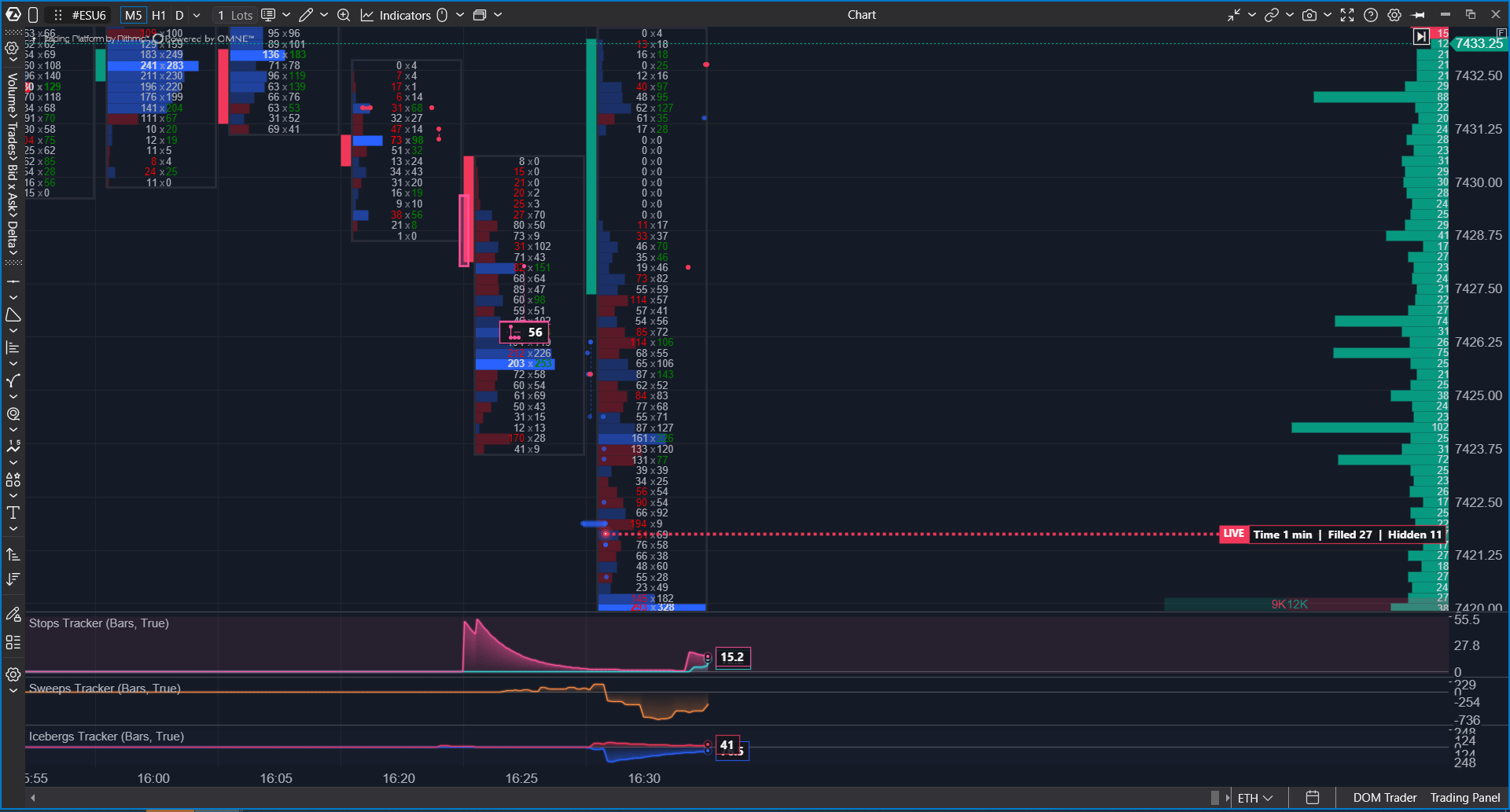
Accumulation modes are used in the lower panel:
| Mode | How to Read It |
| Total Sum | Cumulative sum from the beginning of the visible history or session. |
| Exponential Half-Life | The impulse gradually fades; after the specified time, half of the value remains. |
| Reset Every Interval | Accumulation is reset at each specified interval. |
| Sliding Window | Shows the sum of events over the latest specified time window. |
| Same Side Sum | Sums a series of one side until the side changes. |
For quickly reading current activity, Exponential Half-Life or Sliding Window are usually convenient. For evaluating accumulated pressure over a period, Total Sum is useful.
Practical Recommendations
If Nothing Is Visible on the Chart
Check the following:
- Whether the No Market-By-Order data status is displayed.
- Whether the current connector supports MBO.
- Whether there is live trading for the instrument.
- Whether the minimum volume, range, or order count filters are too strict.
- Whether Panel Only mode is selected while you expect to see objects on the chart.
- Whether Show Sweeps, Show Stop Runs, or Show Volume Labels is disabled.
If the Chart Slows Down
Try the following:
- Switch Display Mode to Chart Only.
- Increase Min Volume.
- For Icebergs Tracker, disable Show Individual Trades.
- For Stops/Sweeps, select a simpler Highlight Style.
- Disable tooltips if they are not needed while actively moving the chart.
If Alerts Are Not Triggered
Check the following:
- Whether Use Alerts is enabled.
- Whether Alert Sound is selected.
- For Stops/Sweeps, whether rendering on the chart is enabled.
- For Stops/Sweeps, whether the selected highlight mode is different from No Highlight.
- Whether the event passes the current filters.
- For Icebergs Tracker, whether Filled has reached the specified Alert Filled Volume.
Important Limitations
The indicators show only what can be reconstructed from the available MBO and trades data streams.
- If the connector does not provide MBO or order IDs, the indicators will not be able to classify events.
- Historical indicator data is taken from the local storage previously recorded by these indicators.
- A stop run does not indicate by itself whether the stop order was used to enter or exit a position. The indicator shows the fact that stop mechanics were triggered, not the participant's trading intent.
- A sweep shows aggressive liquidity removal but is not a standalone trading signal without context.
Was this article helpful?
That’s Great!
Thank you for your feedback
Sorry! We couldn't be helpful
Thank you for your feedback
Feedback sent
We appreciate your effort and will try to fix the article