Sound Notifications
Sound notifications can be configured for various platform events, including server connection and disconnection, trading account connection status, and order-related events.
To open the sound settings, select Settings → Sound Settings.
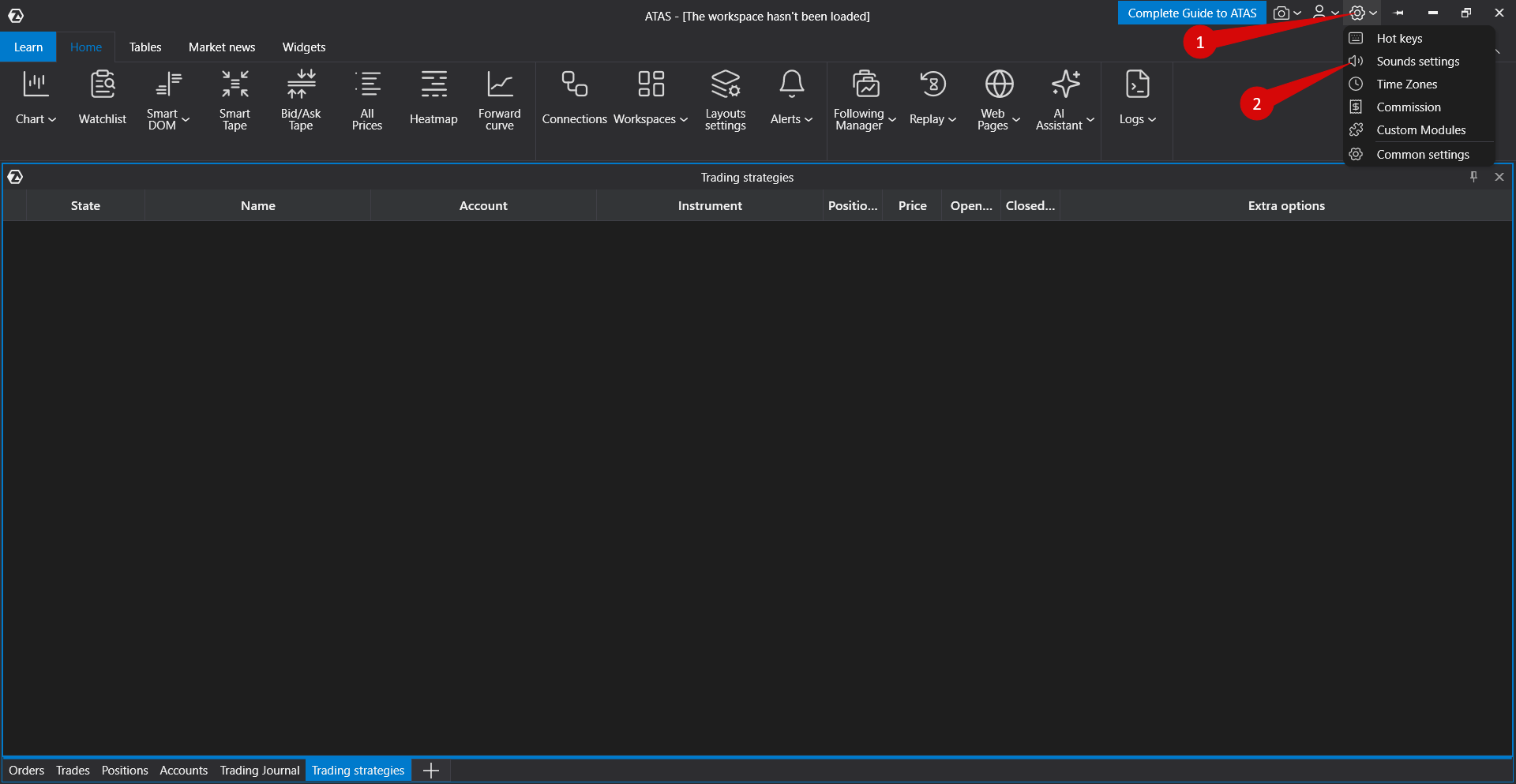
The sound settings window will open.
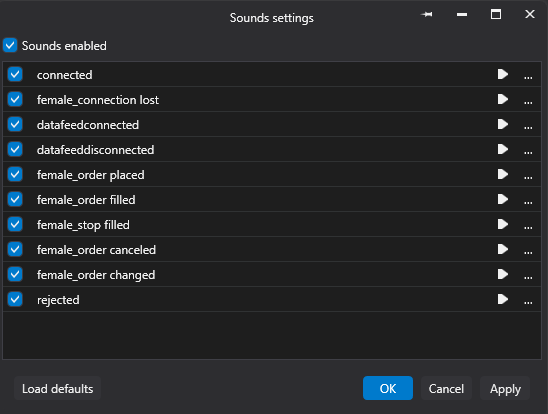
| Event Category | Available Notifications |
| General Settings | Enable Sounds |
| Server Connection | Connected to Server, Disconnected from Server |
| Trading Account Connection | Account Connected, Account Disconnected |
| Order Events | Order Placed Order Filled Stop Order Filled Order Cancelled Order Modified Order Rejected |
Changing Notification Sounds
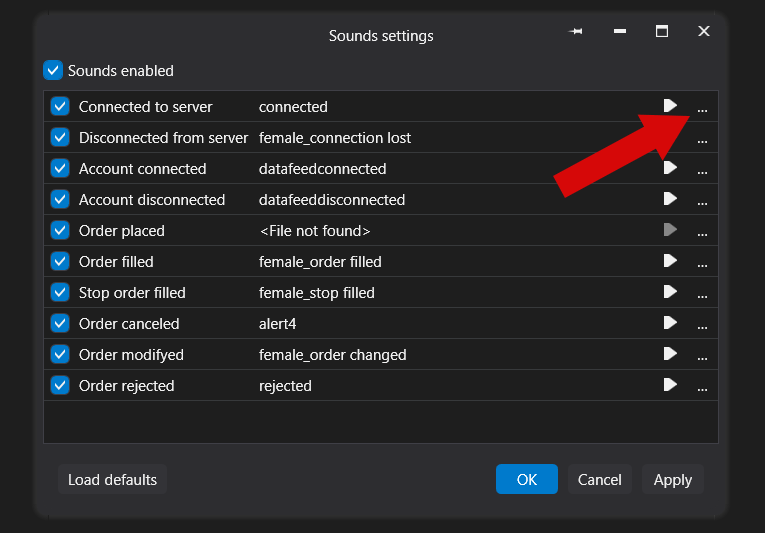
To change the sound assigned to an event, click the audio file selection button.
Select the desired audio file and either double-click it or click Open.
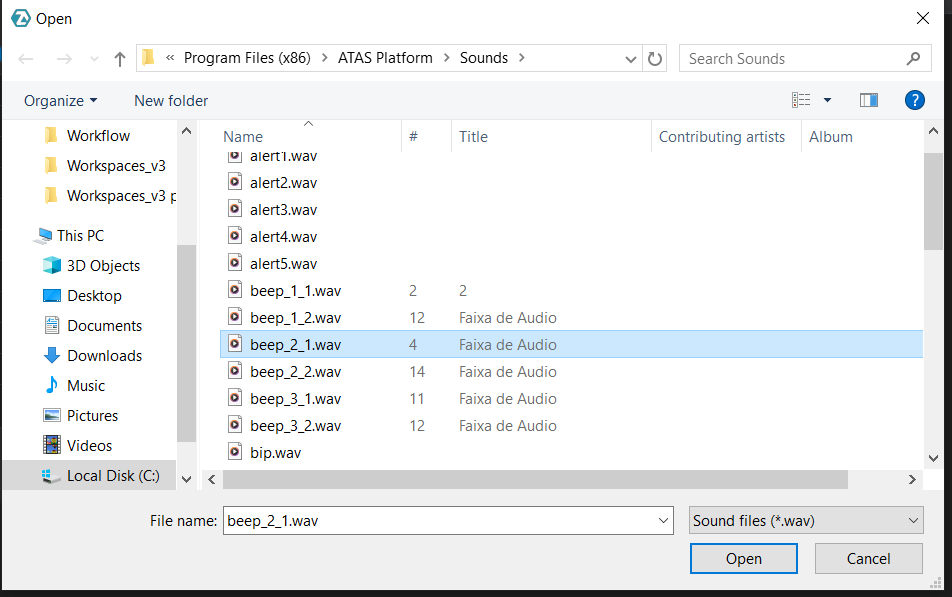
You can use custom audio files for notifications by adding them to the platform's Sounds folder.
Default folder location:
C:\Program Files (x86)\ATAS\Sounds

Important: Audio files must be in WAV format.

You can convert audio files to WAV format using:
https://audio.online-convert.com/convert-to-wav
Was this article helpful?
That’s Great!
Thank you for your feedback
Sorry! We couldn't be helpful
Thank you for your feedback
Feedback sent
We appreciate your effort and will try to fix the article