This function allows you to organize charts of traded instruments into different layouts and quickly switch between them. This is especially useful when trading a large number of instruments.
Below is a video demonstrating how to use layouts and layers in the ATAS platform.
Creating and Configuring Layout Groups
To open Layout Settings, navigate to Home → Layouts.
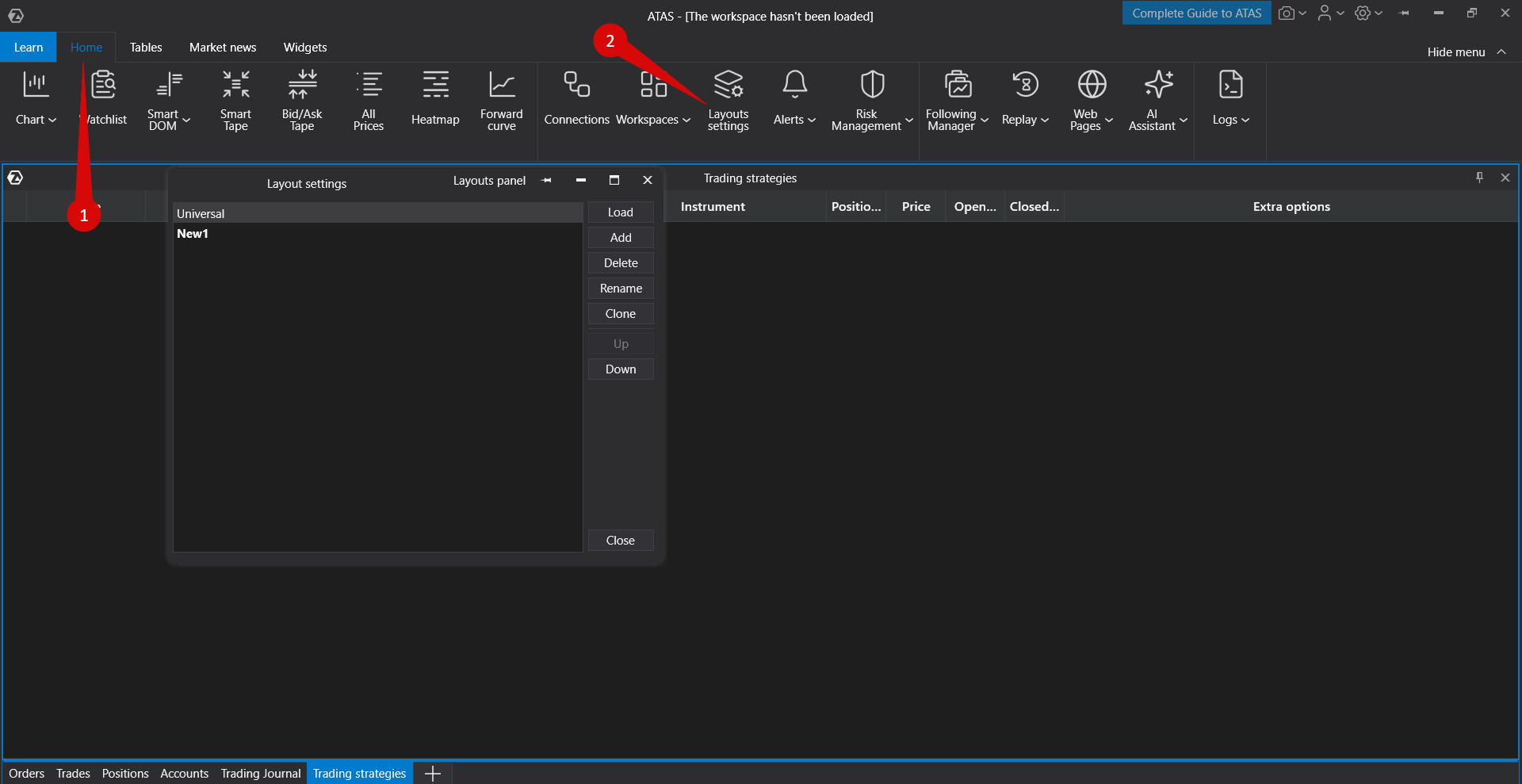
Create a New Layout
Option 1: Create a New Layout from Scratch
Click Add.
In the window that opens, enter a name for the layout and click OK.
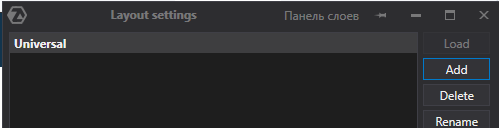

The layout will appear in the list. Click the Open Layout Selector Panel button in the Layouts window and select the newly created layout. Then create the required workspace windows (charts, DOM, etc.).
When collapsed windows are added to a working layer, they will remain hidden when that layer is opened.
Universal — all windows assigned to this layer will be visible across all working layers.
Option 2: Clone an Existing Layout
You can create a copy of an existing layout.
Select the required layout from the list.
Click Clone Layout.

In the window that opens, enter a new layout name and click Clone Window. The cloned layout will appear in the list and will contain the same windows as the original active layout.
After cloning, change the instruments used in the layout as required. More information is available here: Instruments Manager.
Description of the Layers Settings Window
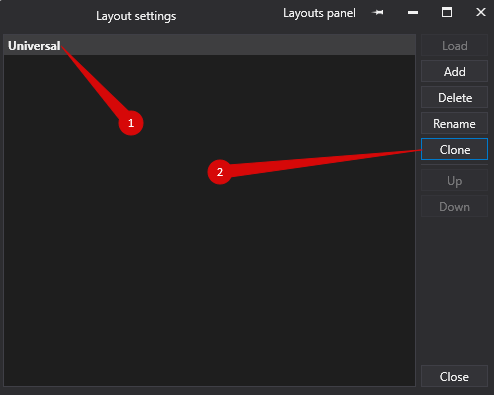
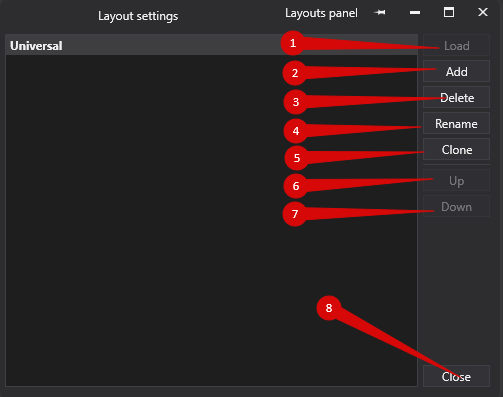
Select a working layer and click Load to activate it.
Add — create a new layer.
Delete — remove the selected layer.
Rename — rename the selected layer.
Clone — create a copy of the selected layer together with all windows assigned to it.
Up — move the selected layer up in the list.
Down — move the selected layer down in the list.
Close — close the Layer Settings window.
Switching Between Layouts
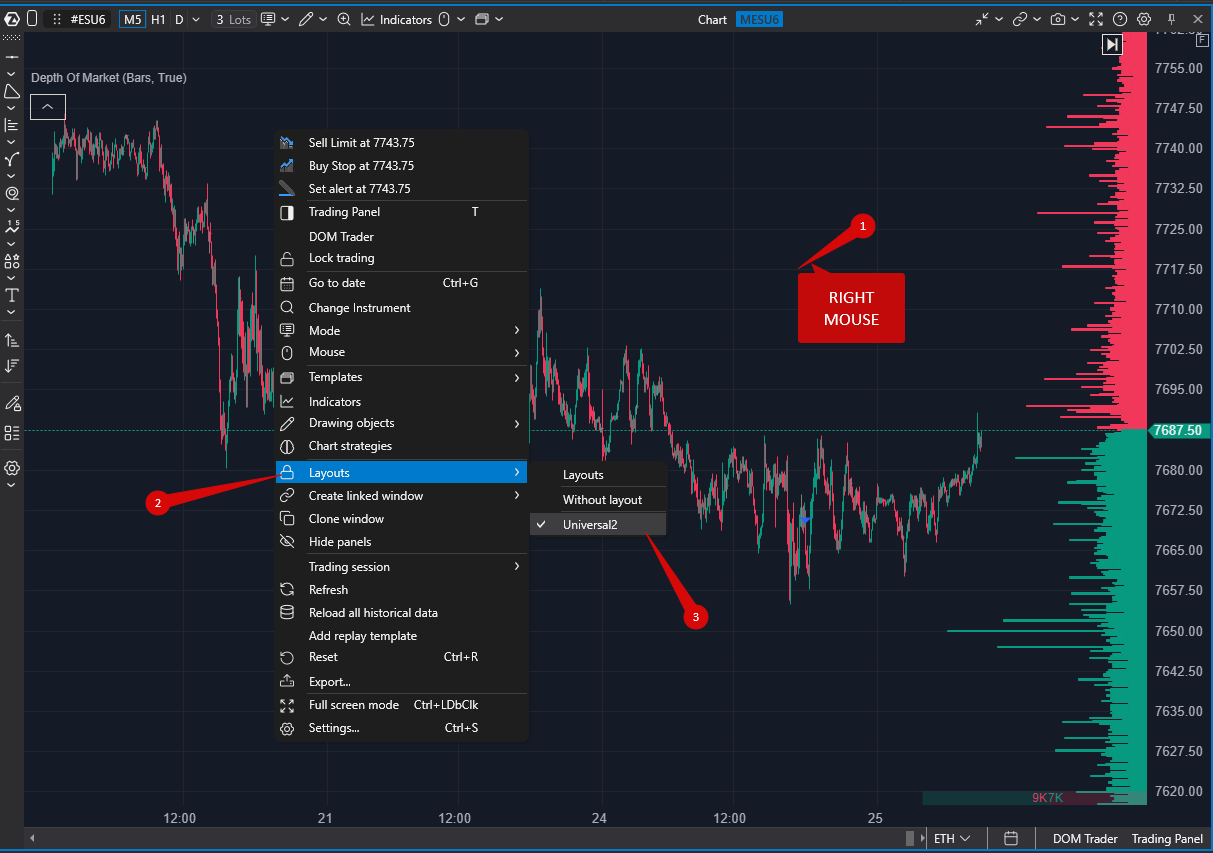
To switch between layouts, open the Select Layouts panel using one of the following methods:
Click Open Layout Selector Panel in the Layouts window.
Open the Settings menu in the main window and select Layouts.
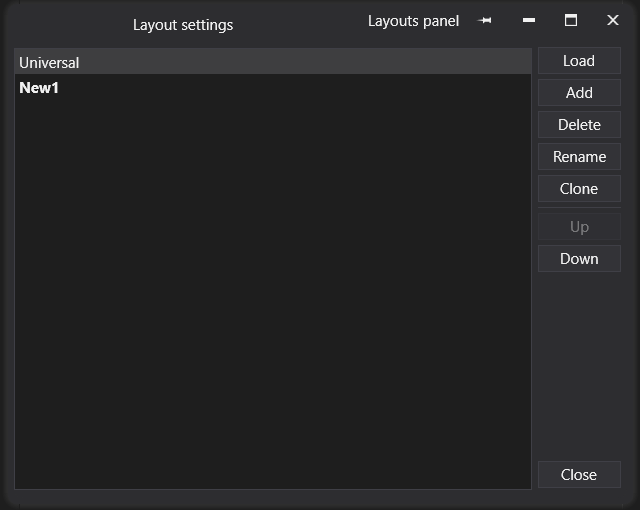
This will open the layout switching panel. The currently active layer is highlighted.
Select the required layout and left-click it once to switch to it.
Was this article helpful?
That’s Great!
Thank you for your feedback
Sorry! We couldn't be helpful
Thank you for your feedback
Feedback sent
We appreciate your effort and will try to fix the article