Crosshair Types and Chart Navigation
This article explains the available crosshair modes and the basic chart navigation tools in ATAS.
Crosshair Types
To select a crosshair mode:
- Click the highlighted crosshair icon on the chart toolbar.
- Select the desired crosshair mode from the menu.
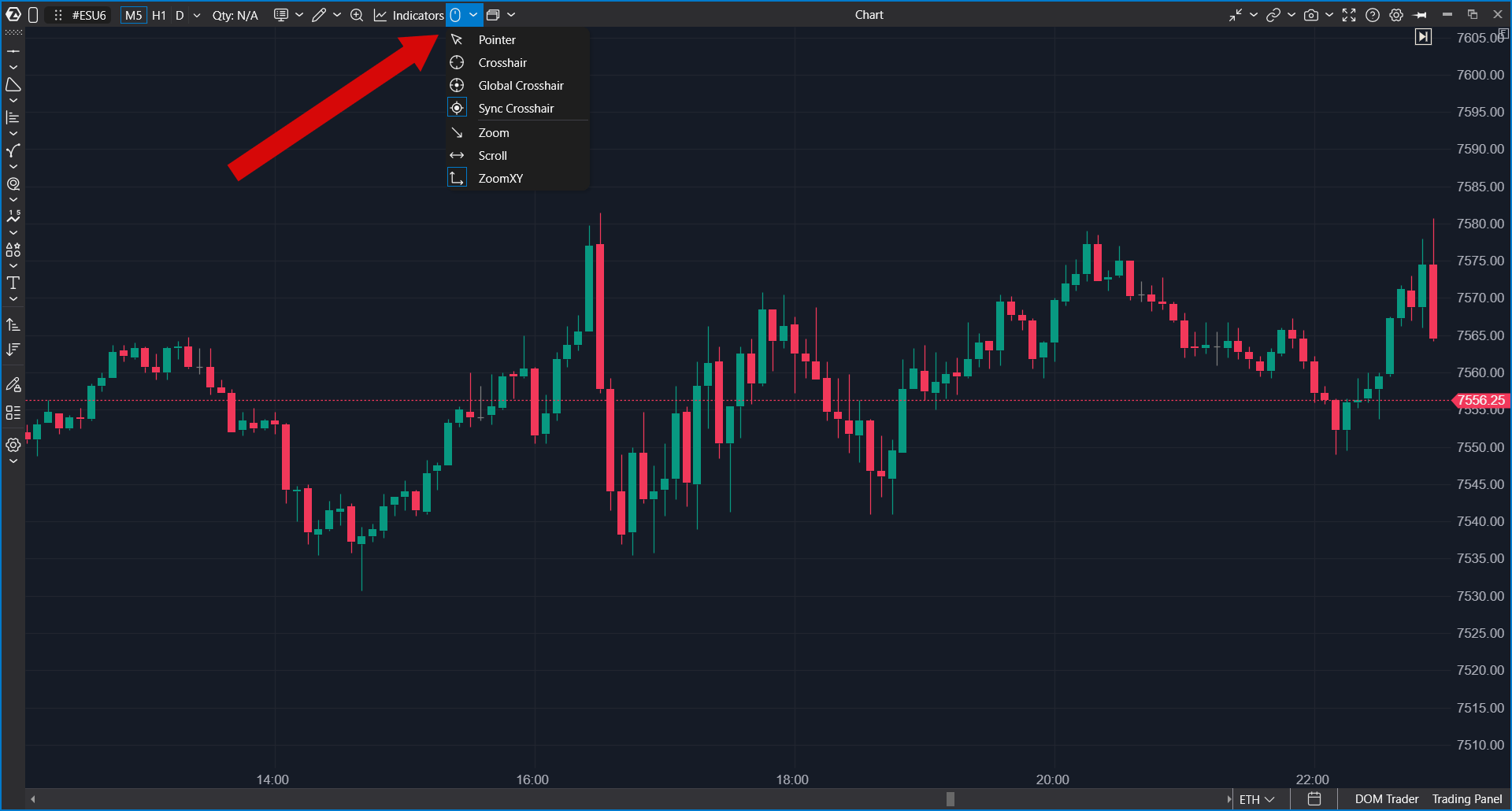
Available Modes
Pointer — displays the standard mouse cursor as an arrow.
Crosshair — displays the cursor as a crosshair within the current chart.
Global Crosshair — synchronizes the crosshair position across all open charts regardless of instrument or timeframe.
Sync Crosshair — synchronizes the crosshair only between charts where a crosshair mode is enabled.
Mouse Wheel Navigation Modes
The same menu allows you to configure mouse wheel behavior for chart navigation:
- Zoom — zooms the chart horizontally (X-axis).
- Scroll — scrolls the chart left and right.
- ZoomXY — zooms both the horizontal and vertical chart scales.
Chart Navigation
Changing the Chart Scale
To change the horizontal or vertical scale, left-click and drag within the price scale or timeline area while holding the mouse button.

Scrolling the Chart
To move through chart history, left-click inside the chart and drag it left, right, up, or down.
You can also use:
- Mouse wheel scrolling
- Page Up and Page Down keys
- The horizontal scroll bar at the bottom of the chart
- The navigation arrows in the lower corners of the chart

The horizontal scale can also be adjusted by holding Ctrl while using the mouse wheel.
Return to the Latest Bar
To quickly return to the most recent bar on the chart, click the following button:


Reset Manual Scaling
To cancel manually applied chart scaling and return to automatic scaling, click the following button:


Was this article helpful?
That’s Great!
Thank you for your feedback
Sorry! We couldn't be helpful
Thank you for your feedback
Feedback sent
We appreciate your effort and will try to fix the article