Chart
The Chart module is used to open and display instrument charts.
To open a chart, click Chart in the main platform window.
This will open the Instruments Manager window.
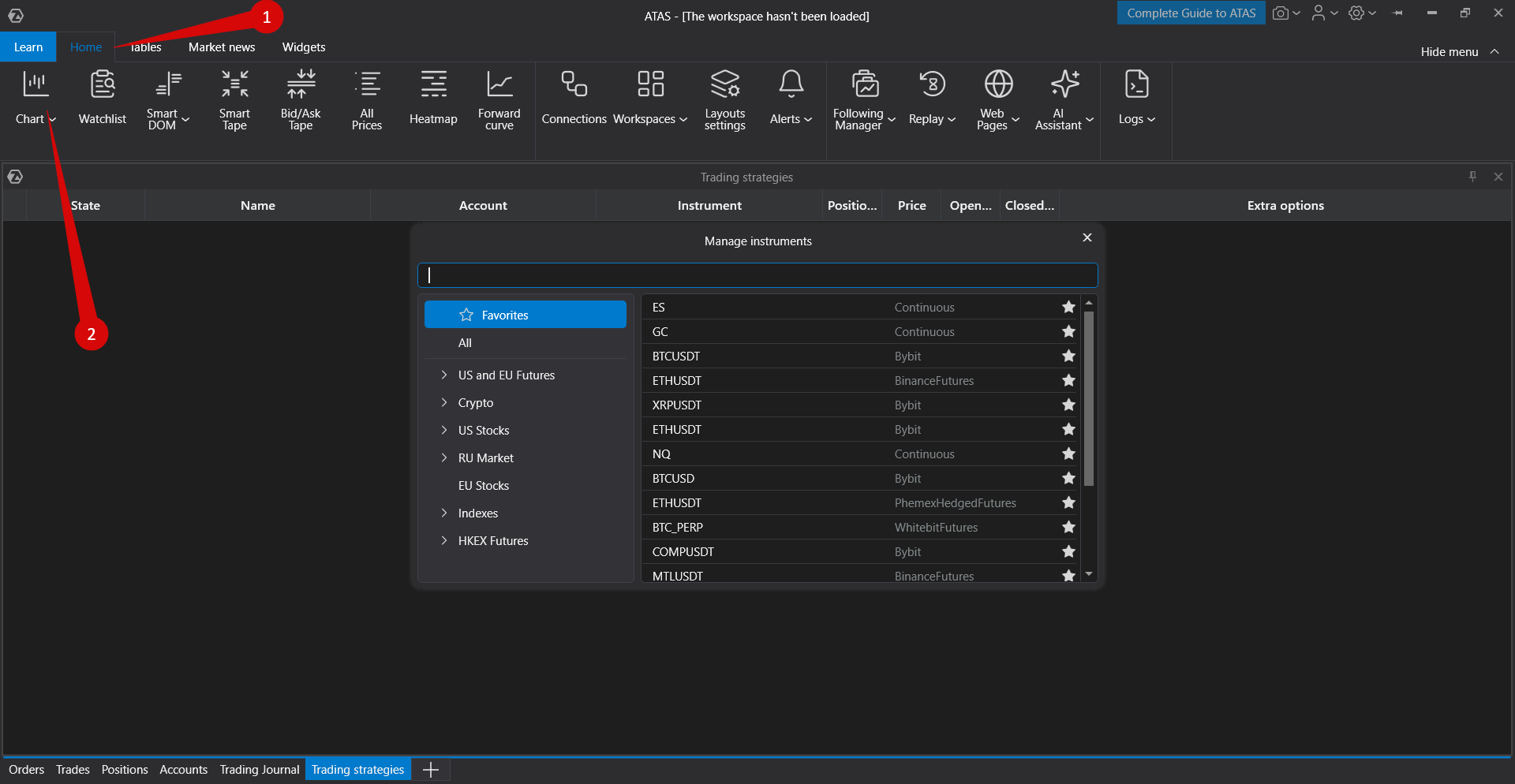
Select an instrument from the Favorites or All Instruments tab and double-click it to open the chart.
For detailed information about the available functions and settings, see the Instruments Manager article.
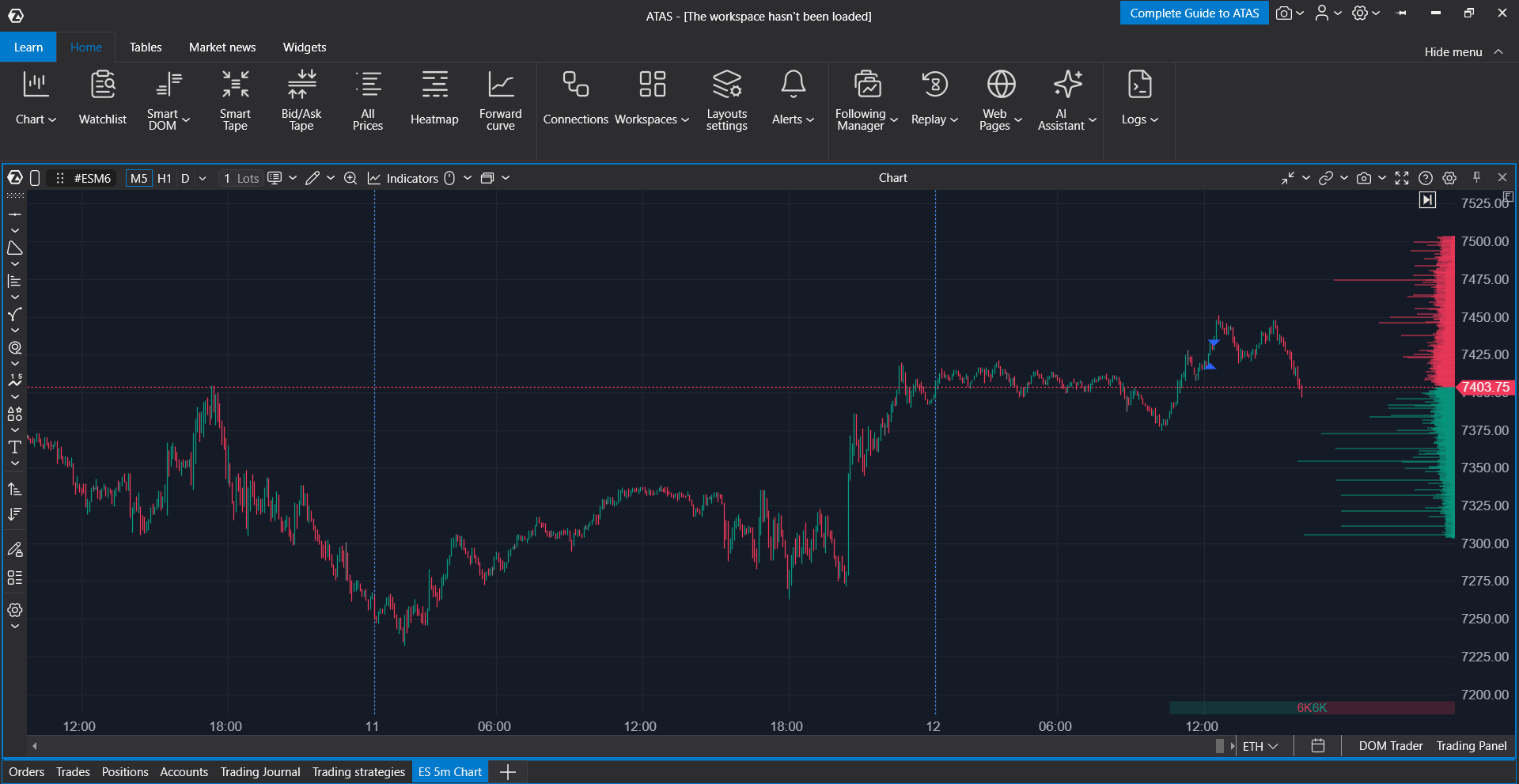
After selecting an instrument, its chart will be opened.
Loading Additional Historical Data
You can increase the amount of historical data loaded on a chart through the chart time settings.
Open the time settings menu in the chart toolbar.
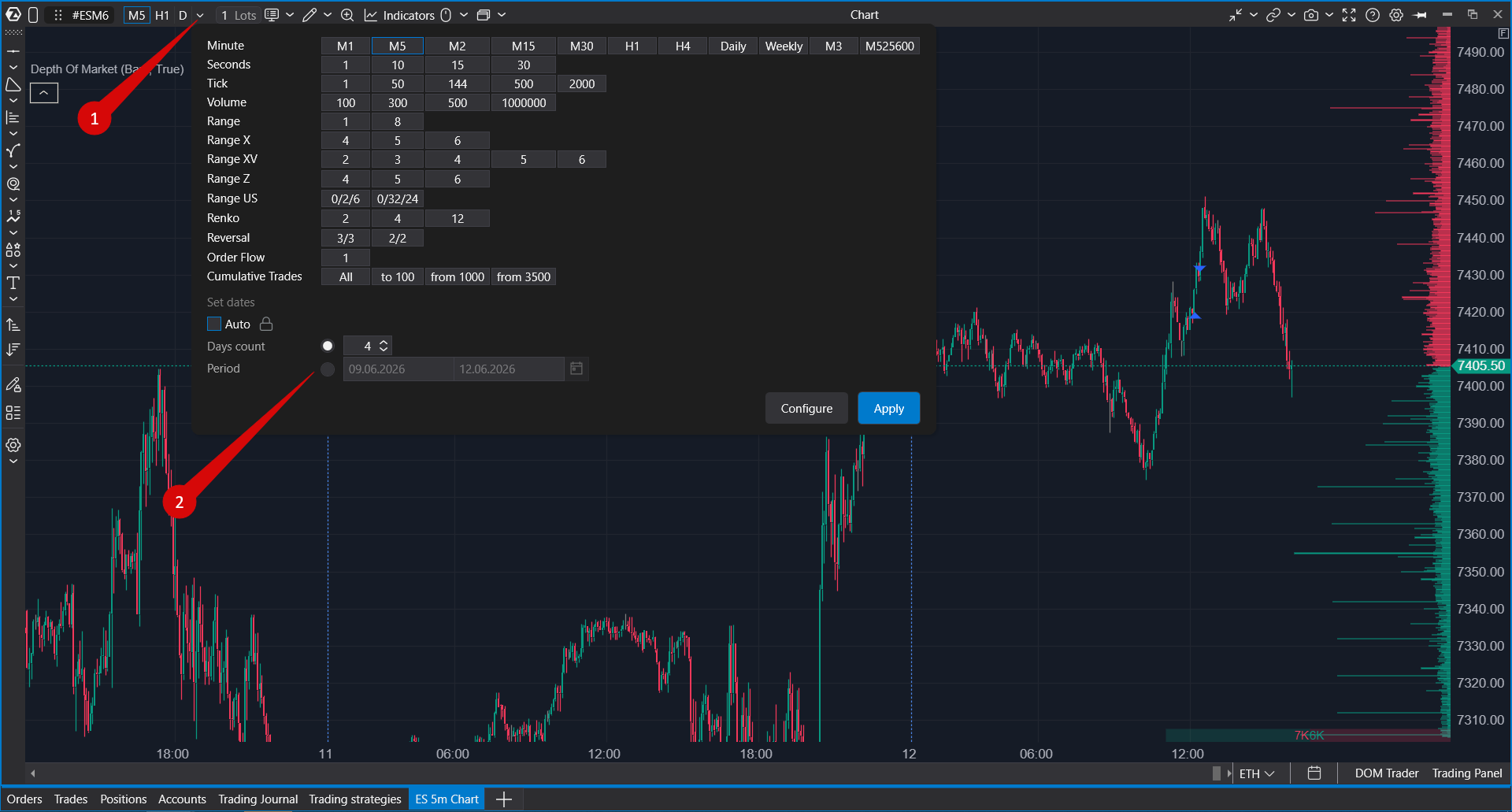
To load additional historical data:
- Disable the Auto option.
- Specify the required value in the Days field.
- Optionally select a custom date range.
- Click Apply and wait for the data to load.
Continuous Contracts
A continuous contract combines data from the current contract with data from previous contracts. This process is performed automatically by the platform.
The transition to the next contract occurs when the daily trading volume of the next contract exceeds the daily trading volume of the current contract.
If the platform is launched after a rollover has occurred, the new contract is loaded automatically. If the platform remains open continuously, the contract will not switch automatically. Restart the platform to load the new contract.
Was this article helpful?
That’s Great!
Thank you for your feedback
Sorry! We couldn't be helpful
Thank you for your feedback
Feedback sent
We appreciate your effort and will try to fix the article