Overview of the Smart Tape Module in the ATAS Platform
Advantages of Smart Tape
The main advantage of Smart Tape in ATAS is the ability to group incoming ticks (individual prints) in a way that allows traders to see actual market orders in their entirety.
In its classical form, this tool displays a stream of orders broken into separate parts. For example, a market order for 100 lots may appear as 100 individual prints. This makes tape reading difficult due to the volume and speed of incoming trades, which is why only a small number of traders can effectively interpret the tape.
A flexible filtering system allows different volume categories to be highlighted, making it easy to identify the actions of traders with different capital sizes.
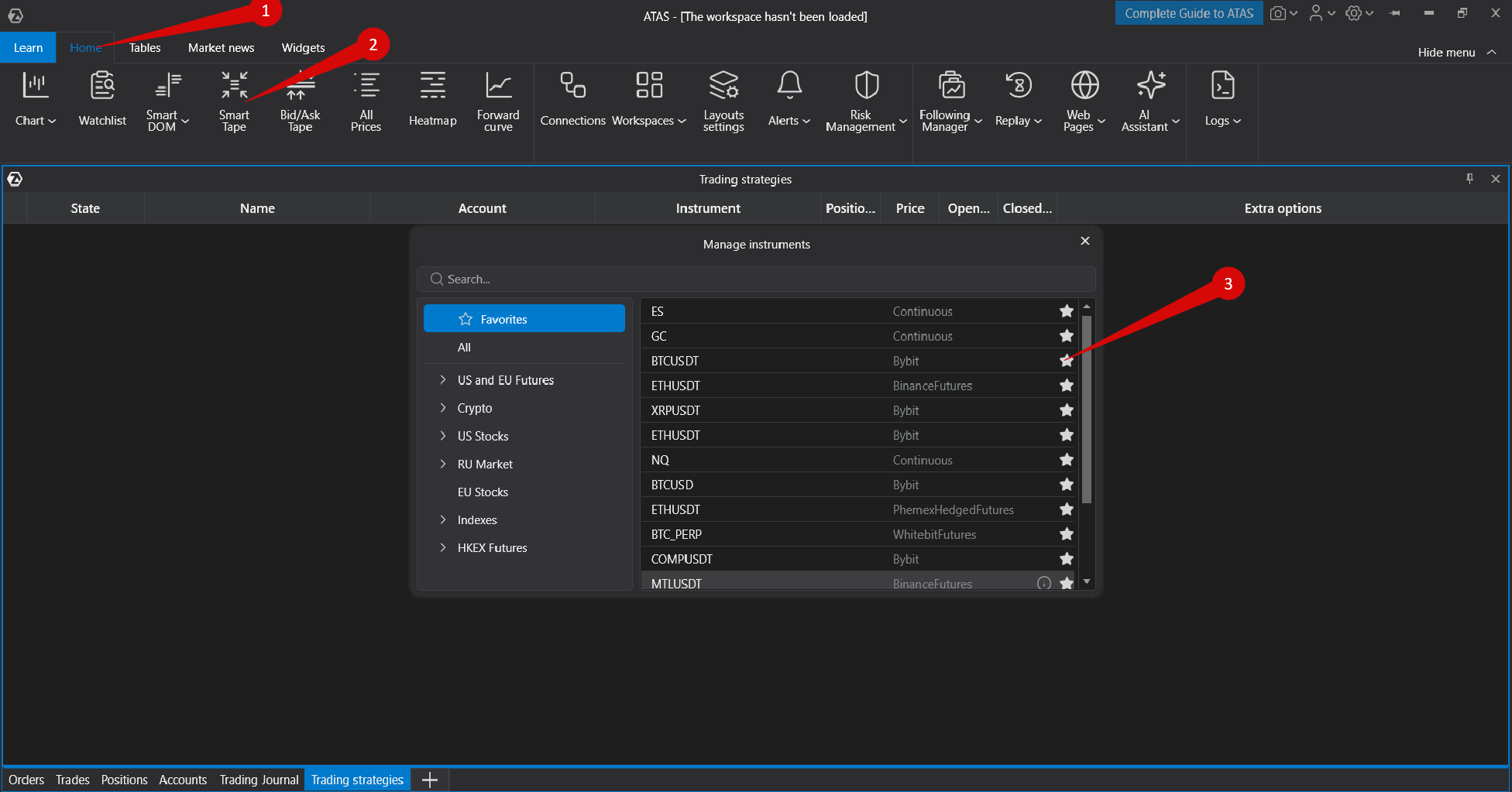
How to Open the Smart Tape Module
To open the module, select Home → Smart Tape, then choose the required instrument.
Interface Description
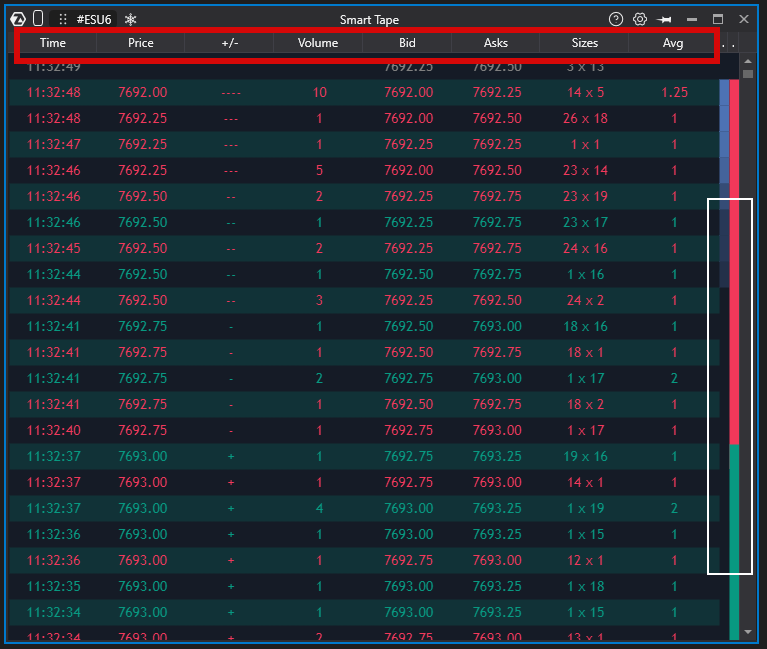
- Instrument switch button
- Freeze — stops the tape feed.
- Instrument grouping
- Smart Tape settings
- Window on Top — keeps the window above other windows.
- Time — trade execution time.
- Price — trade execution price.
- + / - — tick direction (UpTick / DownTick).
- Trade Volume
- Bids — best bid price.
- Asks — best ask price.
- Sizes — Bid/Ask sizes after the trade.
- Avg.Vol. — average trade volume.
- Buy/Sell Strength Indicator
Context Menu
To open the context menu, right-click anywhere in the tape.
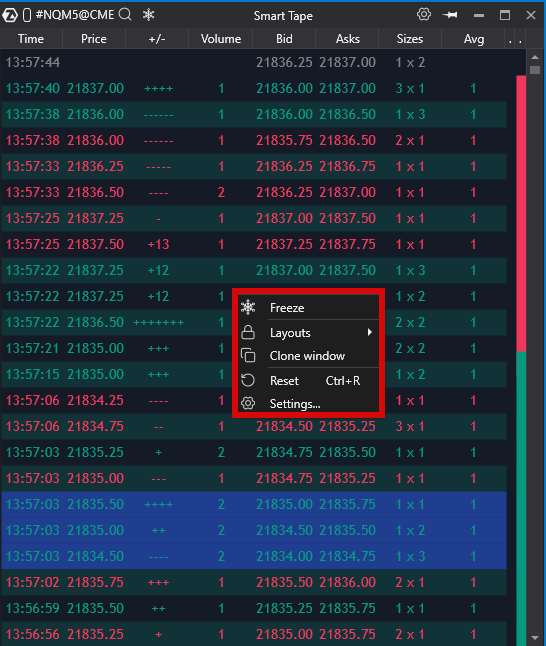
- Freeze — pause or resume the tape.
- Working Layers — work with layers.
- Settings — opens the configuration window.
- Clone Window — creates a copy of the tape window.
- Reset — refreshes the interface.
Smart Tape Settings
The settings window contains four tabs:
- Visual Settings
- Filters
- Alerts
- Templates
Visual Settings
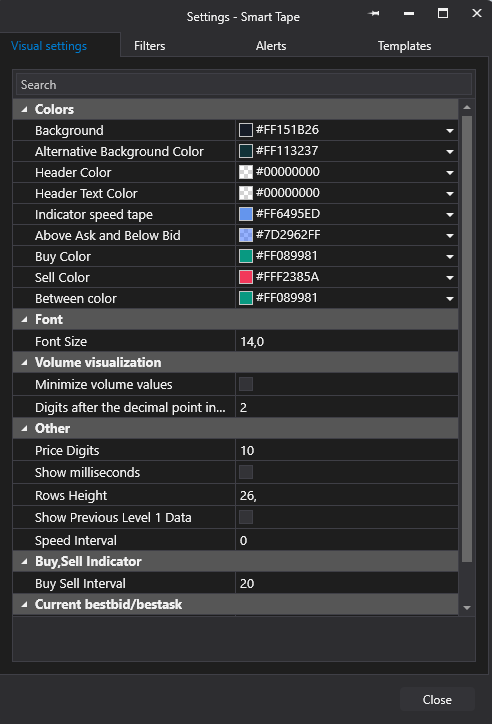
Colors
- Background — background color.
- Alternative Background Color — alternate row background color.
- Header Color — header background color.
- Header Text — header text color.
- Indicator — tape speed indicator color.
- Above Ask and Below Bid — highlights trades executed above the Best Ask or below the Best Bid.
- Buy Color and Sell Color — colors used for buy and sell trades.
- Between Color — color for trades executed inside the spread.
Font
- Font Size — font size used in the tape.
Volume Display
- Minimize Volume Values — for example, 12,345 will be displayed as 12k.
- Digits After the Decimal Point in Volume Values — defines the number of decimal places.
Other Parameters
- Price Digits — number of decimal places displayed for prices (0 disables decimals).
- Show Milliseconds — displays milliseconds in the Time column.
- Row Height
- Show Previous Level 1 Data — displays Best Bid/Ask values from the DOM before a trade occurs.
- Tape Speed Filter
Market Strength Indicator
- Strength Filter — measured in seconds.
Current Best Bid / Best Ask
- Show
- Color
Filters
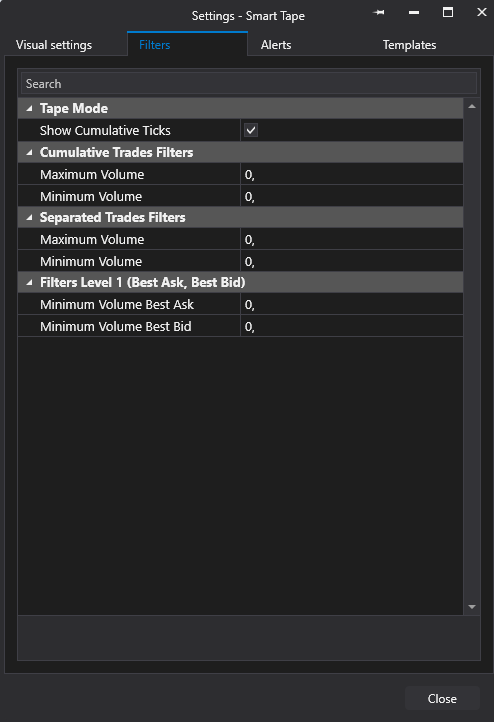
Tape Mode
Show Cumulative Ticks — enables the display of aggregated trades in the market flow.
Cumulative Trades Filter
- Maximum Volume
- Minimum Volume
Separated Prints Filter
Highlights individual prints within a specified volume range. This filter works only when aggregation is disabled.
Level 1 Filters (Best Bid/Ask)
Filters prints based on a specified minimum Best Bid/Ask volume.
Templates
You can save Smart Tape settings as a template (snapshot).
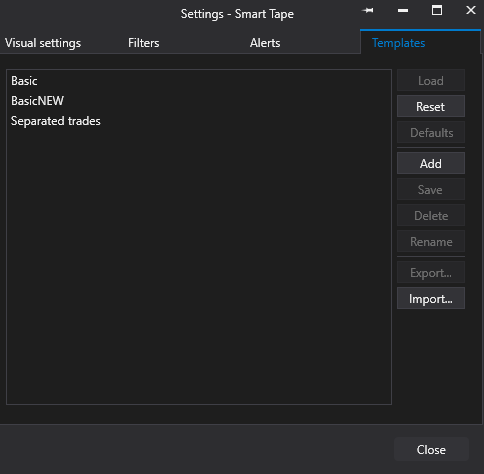
- Click Add.
- Enter a template name.
- Click Save.
- Confirm by clicking OK.
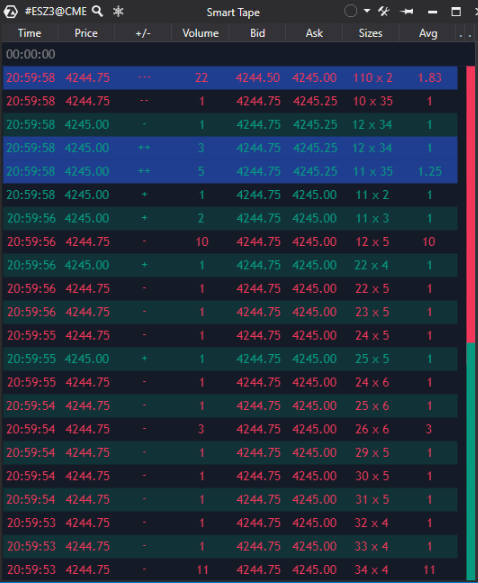
What Do +++ and --- Mean in Smart Tape?
+++ and --- represent UpTick and DownTick, respectively. They indicate the direction of price movement relative to previous trades.
For example, if the price changes from 100 → 101 → 101 → 102, the tape will display +, +, and ++. If the next trade occurs at 101, it will display -.
Was this article helpful?
That’s Great!
Thank you for your feedback
Sorry! We couldn't be helpful
Thank you for your feedback
Feedback sent
We appreciate your effort and will try to fix the article