Authorization Window
This article describes the Authorization window, explains how to switch between platform versions, and provides instructions for password recovery.
You can download and install ATAS X here: https://atas.net/atas-x/. The same credentials are used for ATAS Classic, ATAS X, and the personal account on atas.net.
ATAS X authorization window and platform version selection
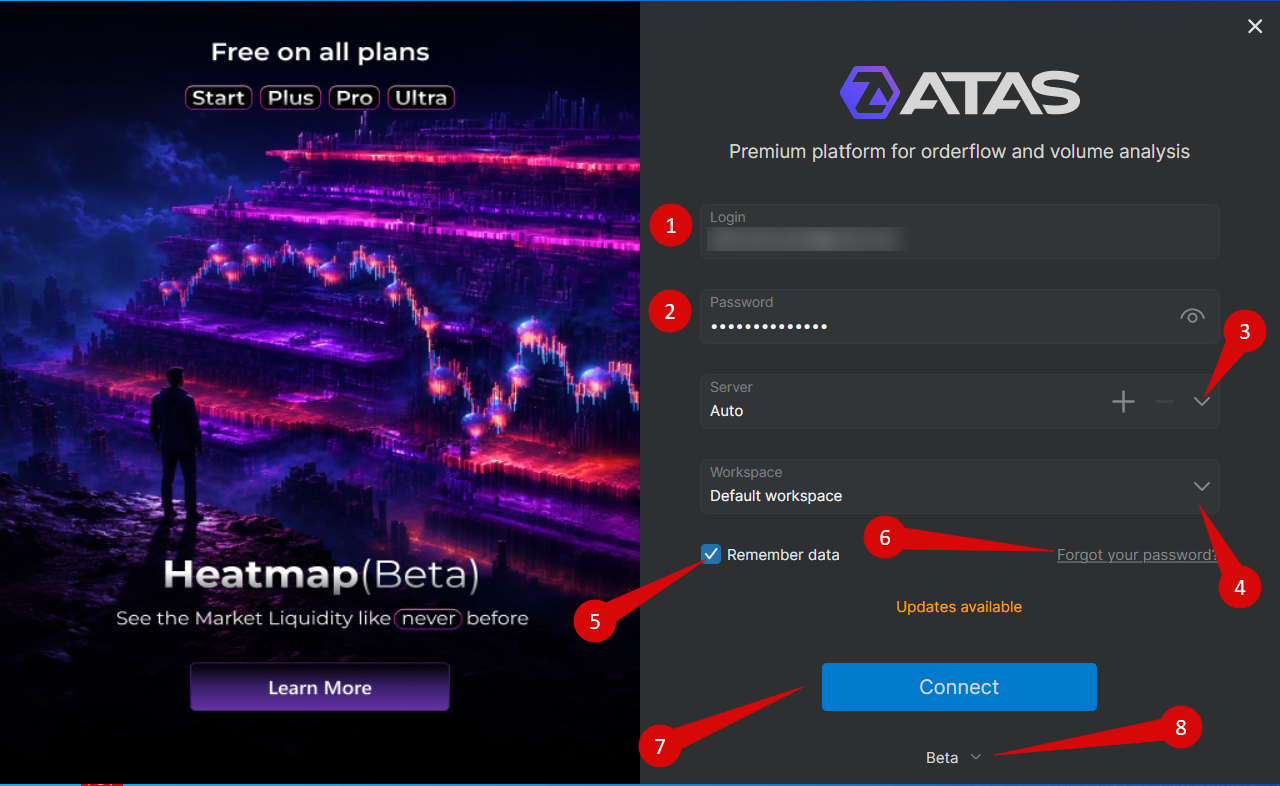
Authorization Window Elements
| Item | Description |
| 1. Login | Email address used for your ATAS account. |
| 2. Password | Password for your ATAS account. |
| 3. Server | Select one of the available servers: F2, E2, T2, R2, or Auto. |
| 4. Workspace | Select a workspace to load after authorization. |
| 5. Remember Data | Saves login information for future sessions. |
| 6. Forgot your password? | Opens password recovery. |
| 7. Connect | Log in to the platform. |
| 8. Platform Version | Select the platform version to launch. |
ATAS X Platform Versions
Alpha
Alpha is the earliest test version of ATAS X. It includes the newest features and major changes that are still in active development.
It may be unstable and can include unfinished functionality, bugs, or temporary limitations. It is intended for early testing rather than everyday use.
Beta
Beta is a more stable test version of ATAS X. It includes features and fixes that have already passed initial Alpha testing.
ATAS Classic authorization window and platform version selection

Authorization Window Elements
| Item | Description |
| 1. Login | Email address used for your ATAS account. |
| 2. Password | Password for your ATAS account. |
| 3. Server | Select one of the available servers: F2, E2, T2, R2, or Auto. |
| 4. Workspace | Select a workspace to load after authorization. |
| 5. Workspace Editor | Edit a workspace without opening it or loading charts. |
| 6. Warning Icon | Appears when the selected workspace contains a large amount of data that may affect performance. |
| 7. Remember Credentials | Saves login information for future sessions. |
| 8. Connect | Log in to the platform. |
| 9. Platform Version | Select the platform version to launch. |
When Auto is selected, the platform automatically chooses an available server.
ATAS Classic Platform Versions
Stable
The Stable version is the primary production release recommended for everyday use.
It is published several times a year and undergoes extensive testing by both the ATAS QA team and the ATAS community before release.
This version may not include the newest features available in later releases.
Latest
The Latest version is a release candidate that becomes available before the next Stable release.
It contains new functionality and bug fixes that have already passed beta testing and are undergoing final validation.
Beta
The Beta version contains the newest features and improvements currently under active testing.
Because development is ongoing, this version may contain bugs or temporary limitations.
Server Selection
The platform can connect to the following servers:
- F2
- E2
- T2
- R2
- Auto
When Auto is selected, the platform automatically connects to one of the available servers.
The selected server does not affect platform functionality because all servers provide identical services.
The servers host the following demo services:
- ATAS Sim
- Crypto Sim
- Crypto Data market data connection
ATAS does not provide real-time exchange market data by default.
To receive live market data, connect a supported broker or market data provider.
Password Recovery
Method 1 — Through the ATAS Website
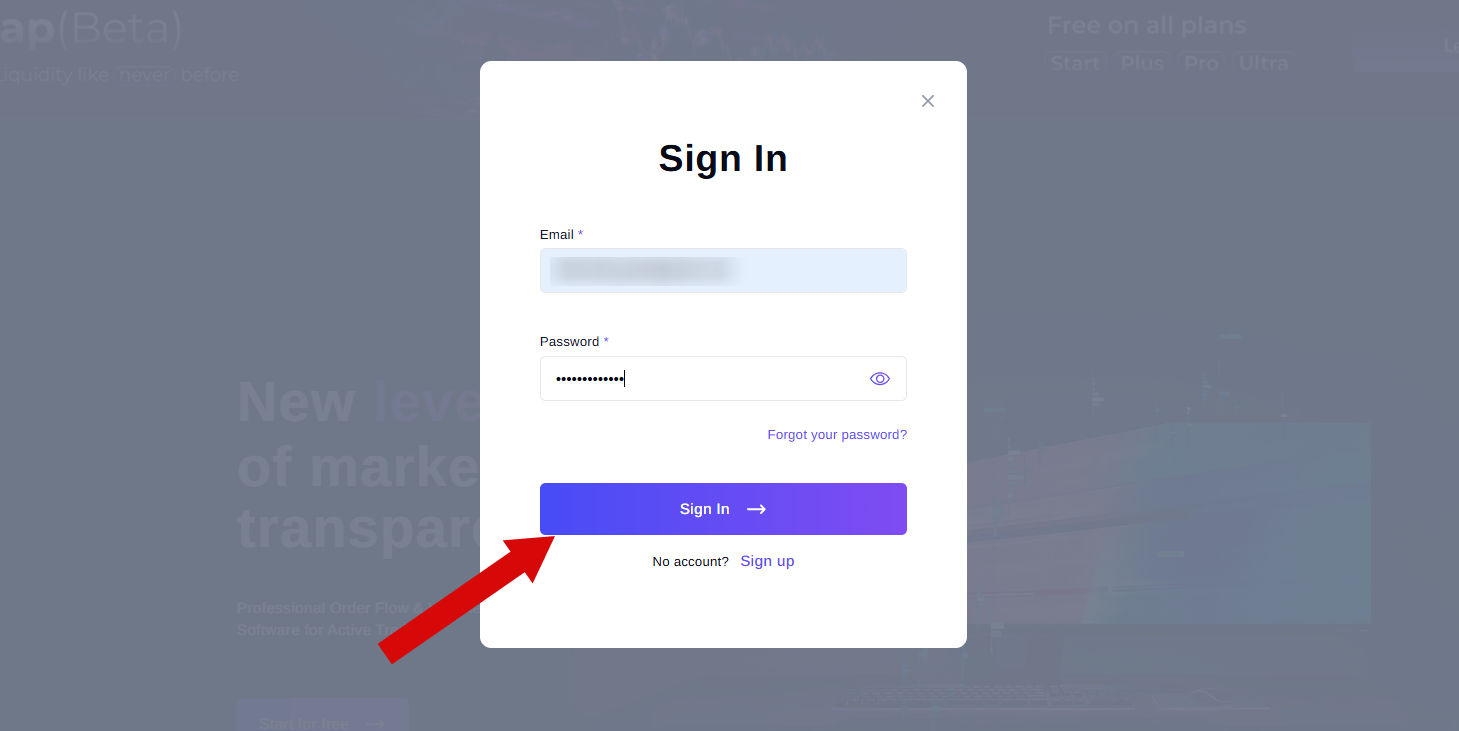
- Open the ATAS website and click Sign In.
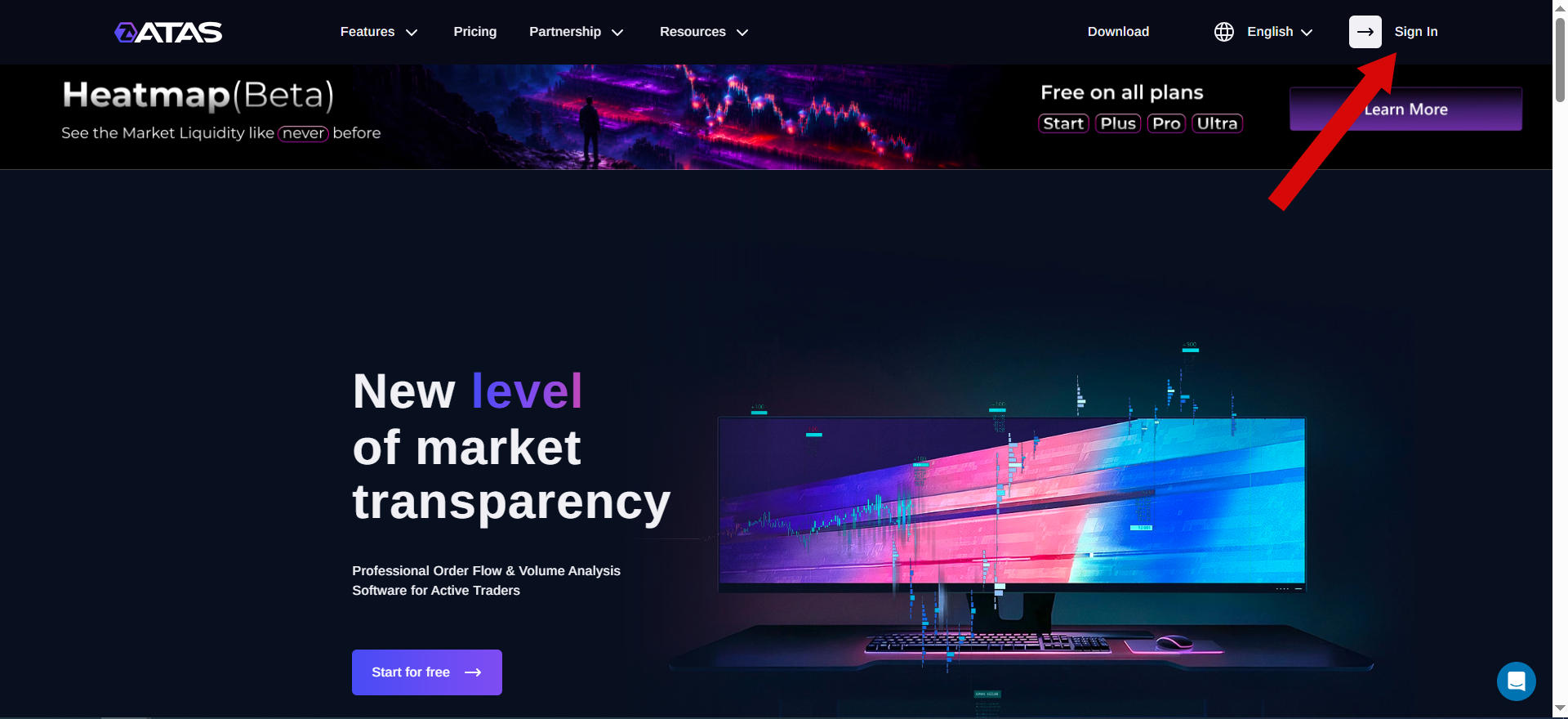
- Select the Sign In tab and click Forgot your password?.
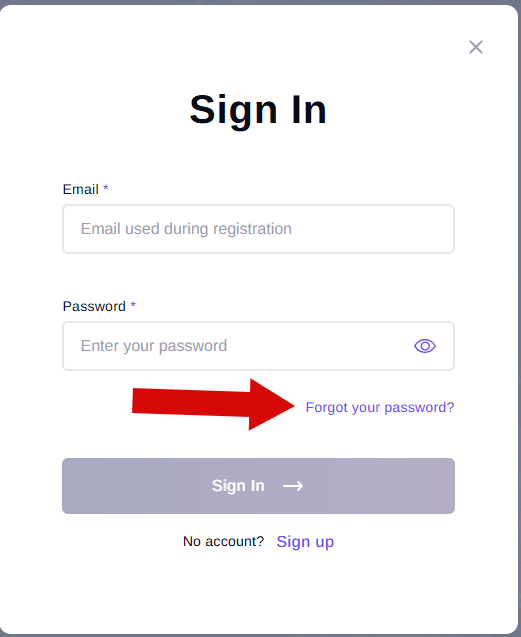
- The password recovery window will open.
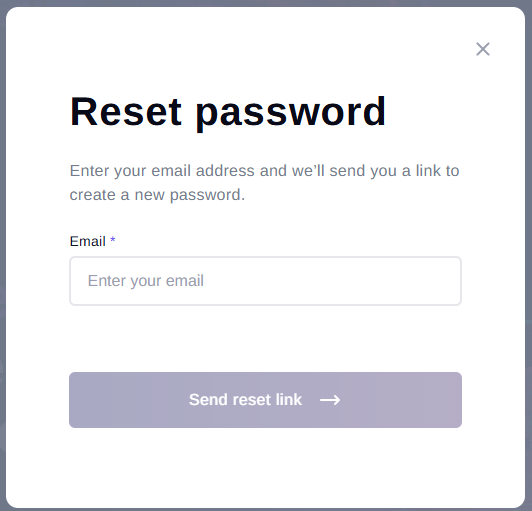
- Enter your email address and click Continue.
- A confirmation message will appear.
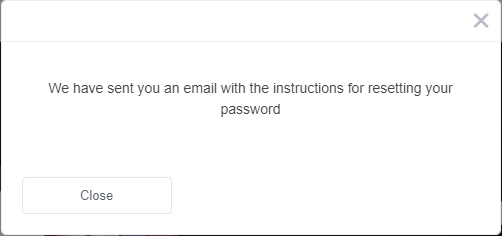
- Check your email and open the password recovery message.
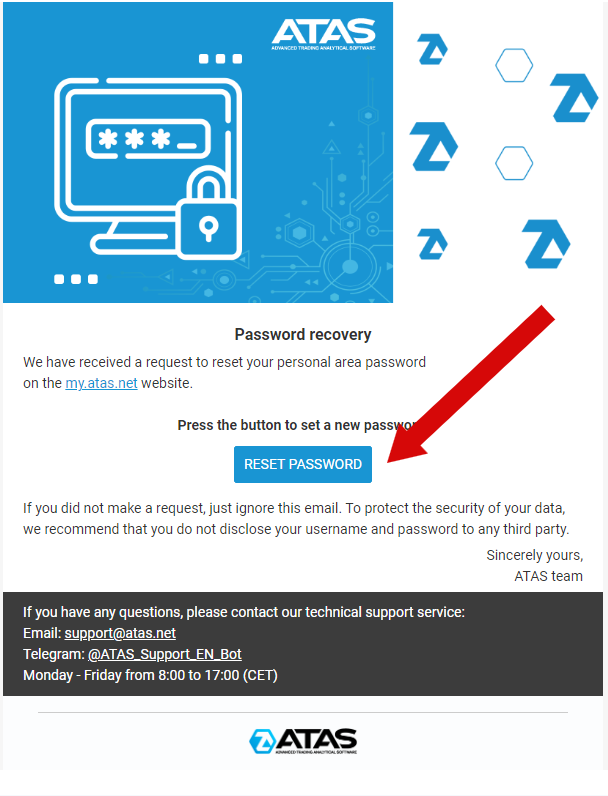
- Click Change Password.
- The password reset page will open.
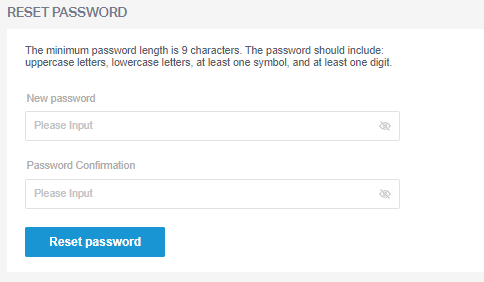
- Enter and confirm your new password.
- Click Reset Password.
- A confirmation message will appear indicating that the password has been changed successfully.

Method 2 — Through the Personal Account
- Open the ATAS website and click Sign In.
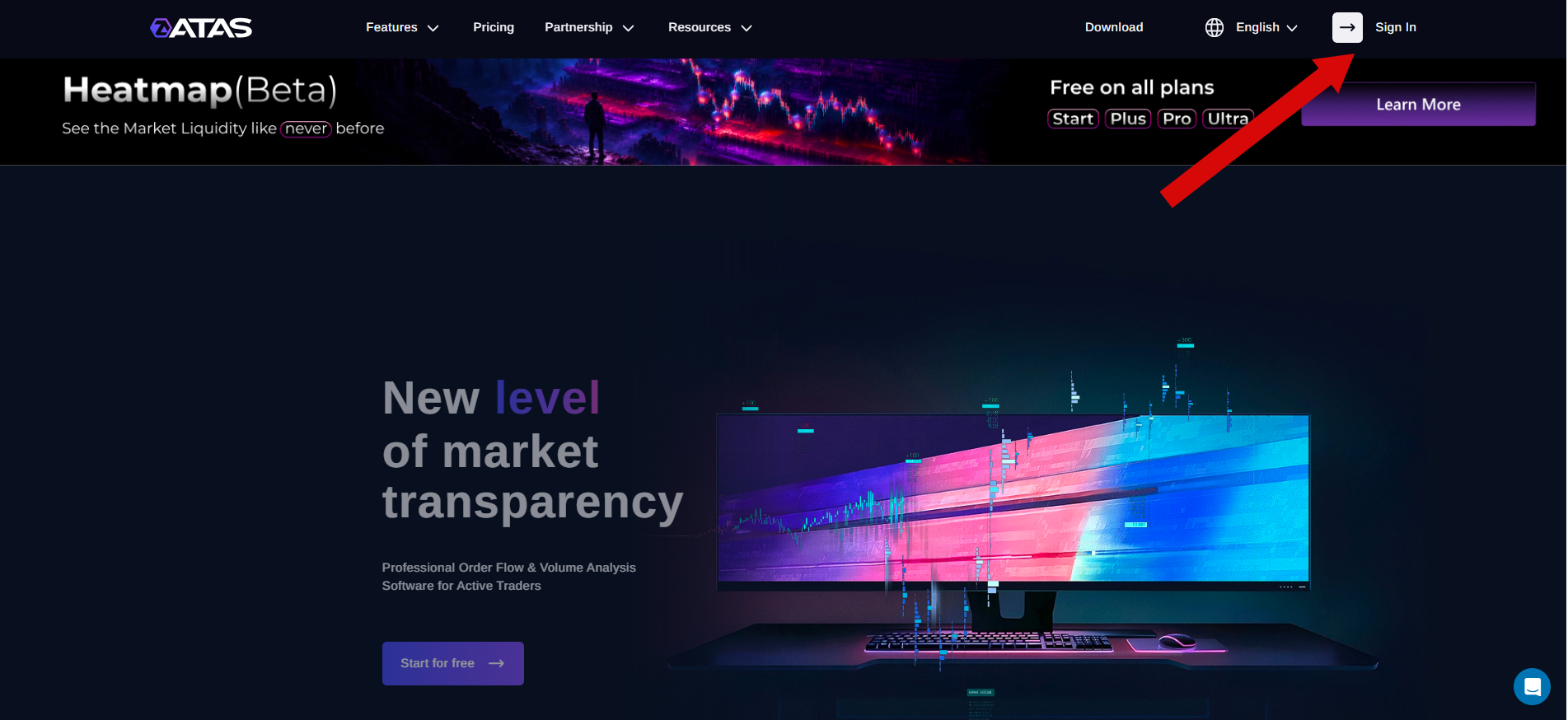
- Sign in to your personal account.
- Open My Profile → Change Password.
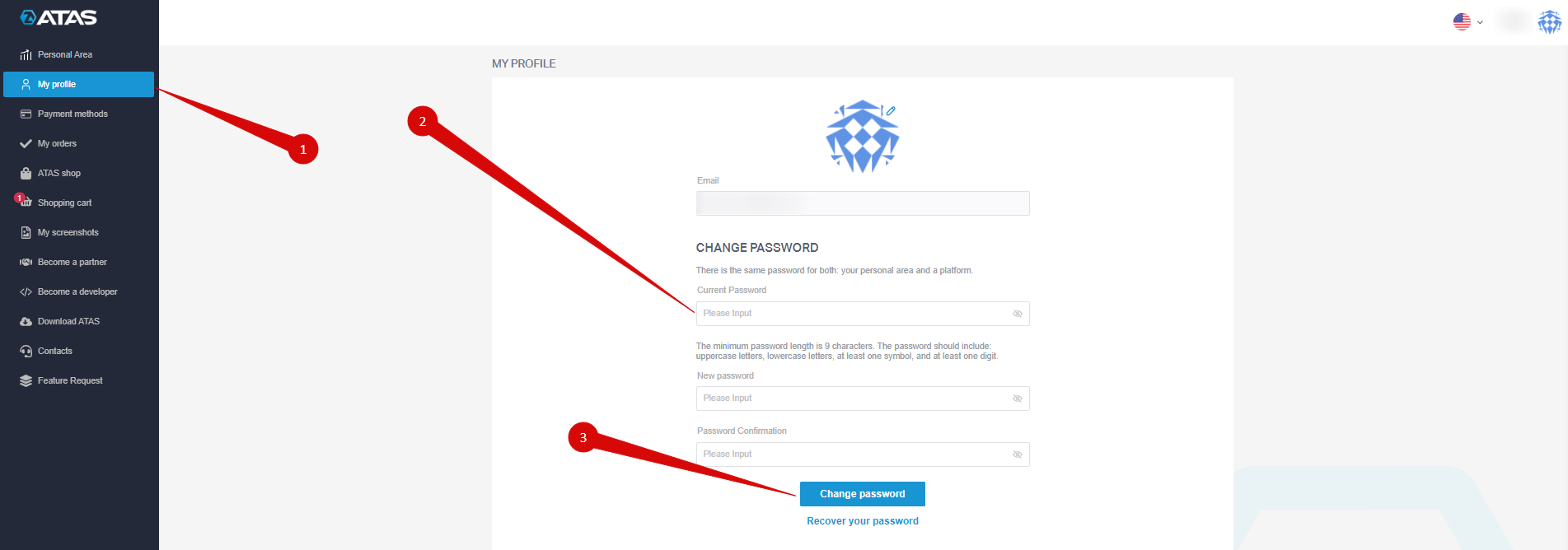
- Enter your current password, then enter and confirm your new password.
- Click Change Password.
- A notification will confirm that the password was changed successfully.

Method 3 — Through the ATAS Platform
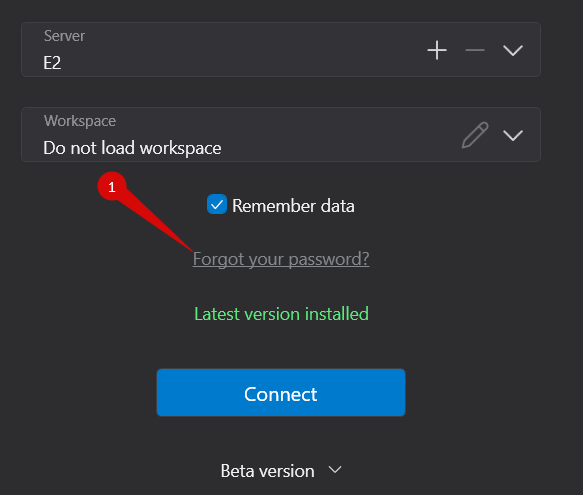
- Open the ATAS authorization window.
- Click Forgot your password?.
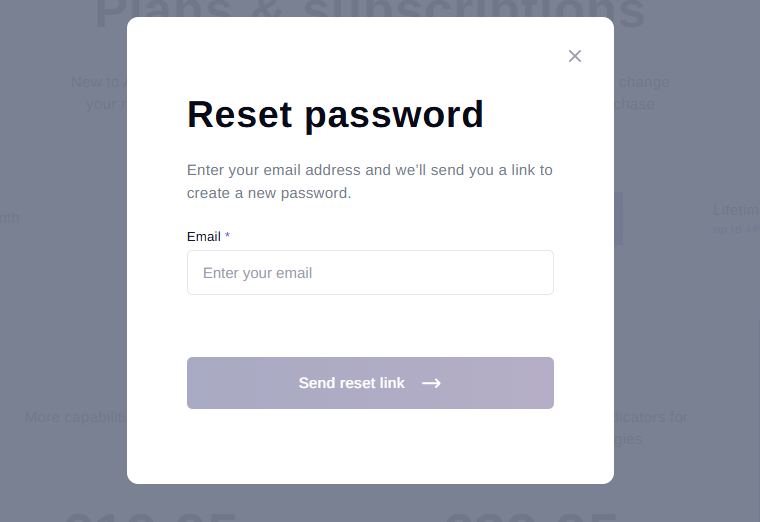
- Enter your email address and click Send Reset Link.
Using ATAS on Multiple Computers
You can use the same ATAS account on multiple computers, but only one active session is allowed at a time. To log in on another device, use the same email address and password associated with your ATAS account.
Was this article helpful?
That’s Great!
Thank you for your feedback
Sorry! We couldn't be helpful
Thank you for your feedback
Feedback sent
We appreciate your effort and will try to fix the article