The article describes the Connections window and its settings.
How to Open the Connections Window
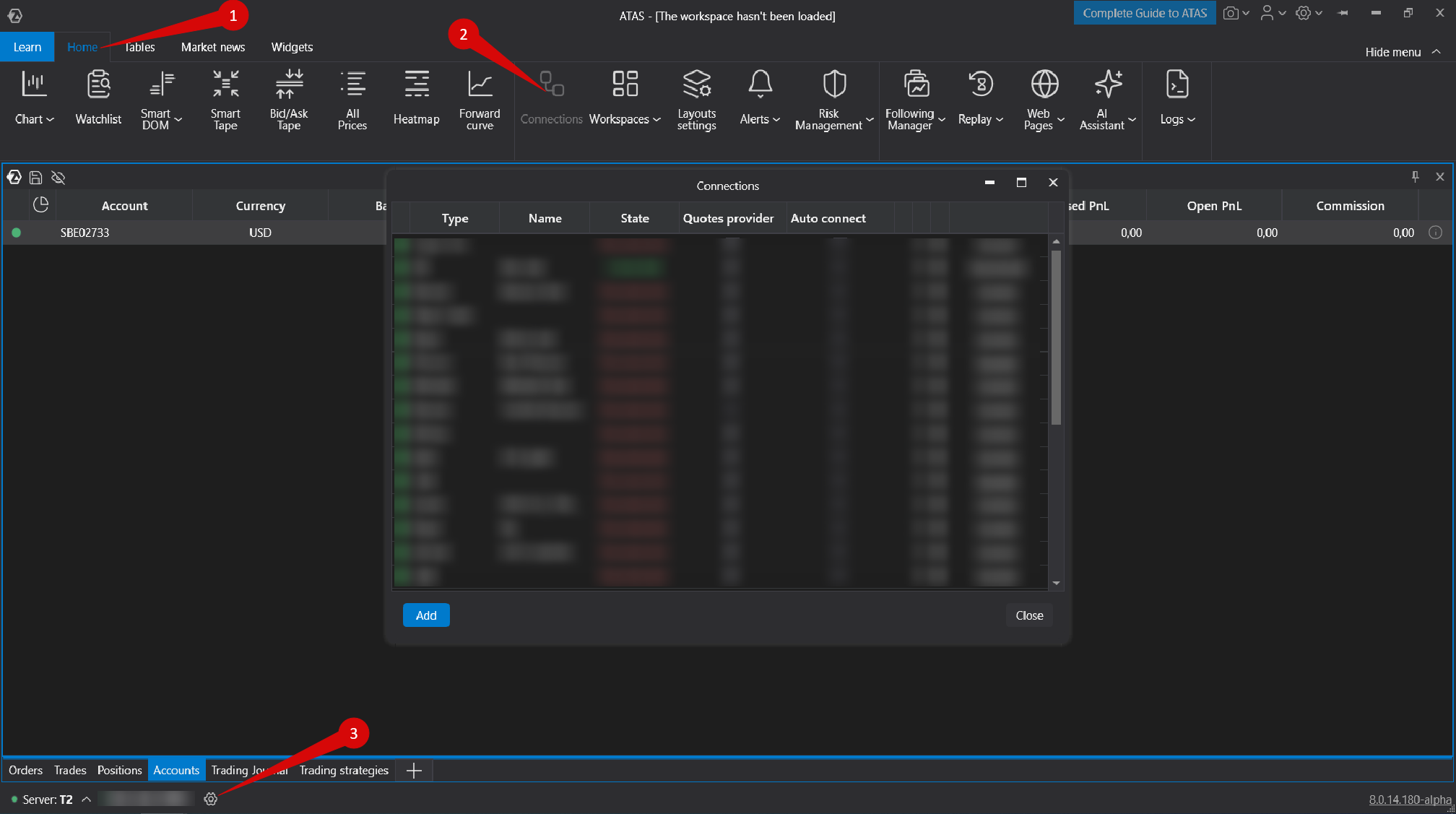
To open the connection settings window in the ATAS platform, use one of the following methods:
- In the main platform window, open the Home tab and select Connections.
- Left-click the connection status indicator in the main platform window.
Description of the Connections Window
The following window will open. Below is a description of each section:
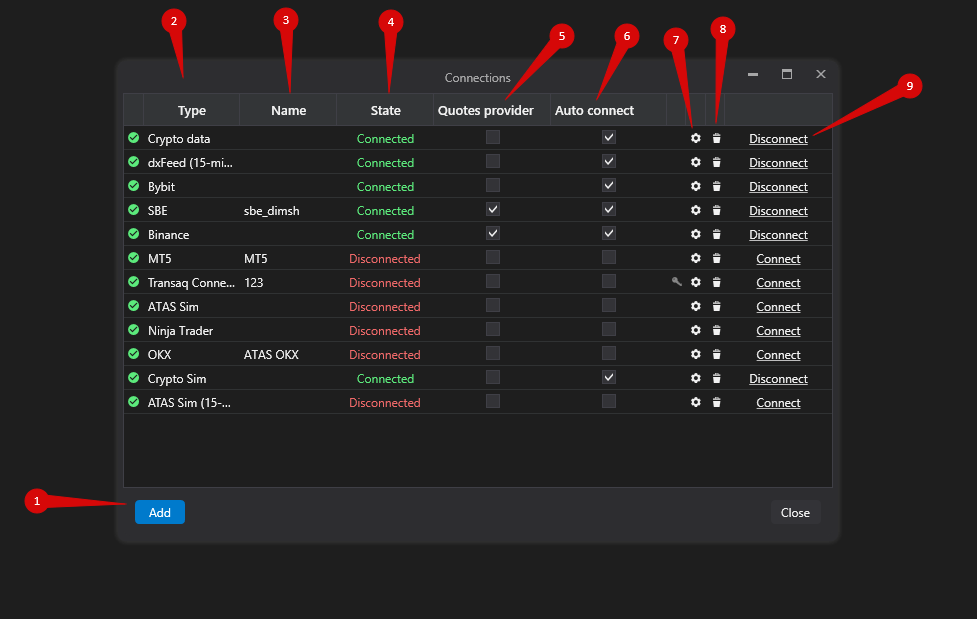
- Add — add a new connection.
- Type — the data source of the connection.
- Name — the name of the connection that you can define manually.
- State — the current connection status.
- Quote Provider — use this option to select the connection as a quote data source.
- Auto Connect — enable this option to connect automatically when the platform starts.
- Connection Settings — opens the configuration settings of the selected connection.
- Delete — removes the connection from the list.
- Connect/Disconnect — connects or disconnects the selected connection.
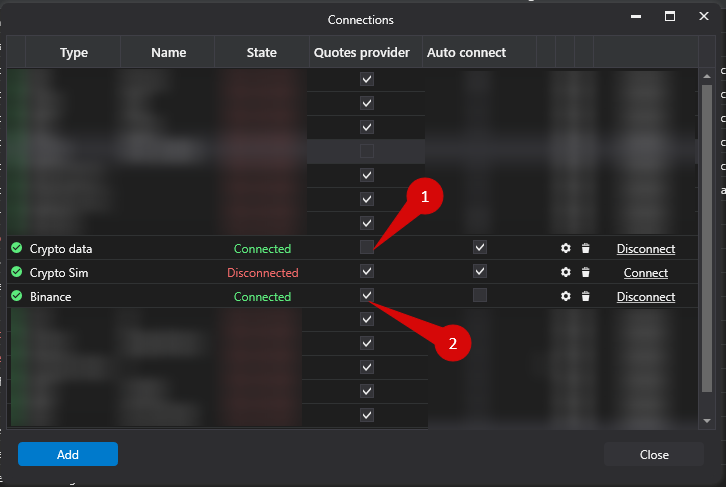
If you have multiple connections that provide quotes for the same instrument, leave only one connection selected as the Quote Provider. Otherwise, volumes may be duplicated.
Connecting Multiple Accounts
Can I connect several accounts at the same time?
Yes. However, you should not connect two or more quote providers for the same market simultaneously, as this will result in duplicated quotes.
If you want to receive quotes from only one connection while using multiple connections for order execution, disable the Quote Provider option for the additional connections.
Was this article helpful?
That’s Great!
Thank you for your feedback
Sorry! We couldn't be helpful
Thank you for your feedback
Feedback sent
We appreciate your effort and will try to fix the article